
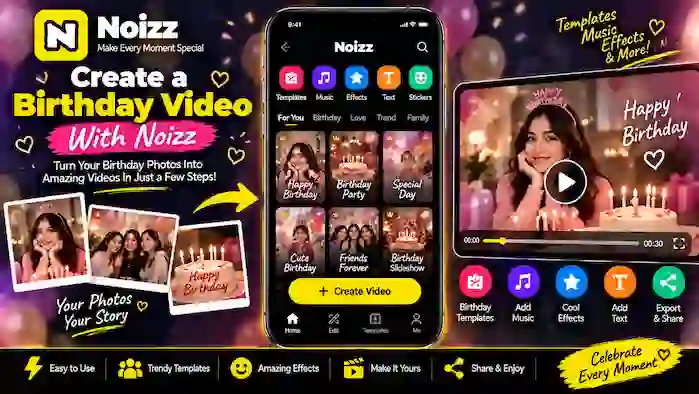
A birthday video is a simple way to turn your favorite pictures and memories into a short, creative celebration. With Noizz, you can combine birthday photos with templates, music, effects, text, and transitions to create a personalized video.
If you’re looking for a Noizz birthday video, this guide explains how to choose your photos, select a suitable Noizz birthday template, add music and text, preview the project, and export the finished video.
The exact tools and interface may vary depending on your Noizz version and Android device, but the overall process remains straightforward.
What Is a Noizz Birthday Video?
A Noizz birthday video is a short video made from birthday-related photos and enhanced with creative editing elements.
You can create a video for:
- A friend’s birthday
- A family member’s birthday
- A birthday party
- A child’s birthday
- A personal birthday memory
- A birthday greeting
- A photo slideshow
Instead of sending several separate pictures, you can combine them into one video with a clear beginning, middle, and ending.
What You Need Before Creating the Video
Before starting your project, collect the photos you want to use.
Good choices include:
- Recent birthday photos
- Family pictures
- Photos with friends
- Childhood memories
- Party pictures
- Cake and decoration photos
- Special moments from previous birthdays
Try to select photos that tell a story rather than adding every picture from your gallery.
You should also make sure your phone has enough storage for the project and exported video.
Step 1: Open Noizz
Open Noizz on your Android device.
Depending on the version you’re using, the home screen may provide options for templates, editing, music, or creating a new project.
Look for a suitable option for starting a photo or video project.
The names and locations of buttons can change between versions, so your interface may look different from screenshots or older tutorials.
Step 2: Select Birthday Photos
Choose the photos you want to include in the birthday video.
A good sequence could begin with older memories and gradually move toward recent birthday moments.
For example:
Childhood Photos → Family Memories → Friends → Party → Cake → Final Birthday Message
You don’t need a large number of photos. A smaller collection of meaningful images can make the video more enjoyable to watch.
Step 3: Choose a Noizz Birthday Template
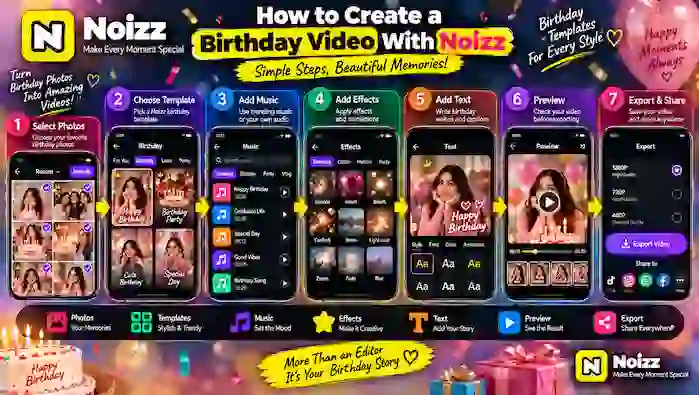
A Noizz birthday template can provide a ready-made structure for your project.
If birthday-related templates are available in your current version, browse the template section and choose one that matches the style of your photos.
Look for templates suitable for:
- Birthday celebrations
- Photo slideshows
- Party memories
- Family celebrations
- Greeting videos
Templates may automatically provide elements such as transitions, timing, effects, and music.
Availability can change with application updates.
How to Choose the Right Birthday Template
Don’t choose a template simply because it contains many effects.
Instead, consider the mood of your video.
For a Fun Birthday
Choose a colorful or energetic template that works well with party photos.
For a Family Birthday
A simple memory-focused template may be more appropriate.
For a Birthday Greeting
Choose a template that provides enough space for a short personal message.
For a Child’s Birthday
A playful template can work well with bright party pictures and celebration moments.
The best template is one that supports your photos rather than distracting from them.
Step 4: Arrange Your Photos
After selecting a template, check the order of your photos.
The sequence can make the birthday video feel more like a story.
You could organize the project like this:
- Opening photo
- Childhood memory
- Family photos
- Friends
- Birthday celebration
- Cake or decorations
- Favorite recent photo
- Birthday message
Move or replace images if the sequence doesn’t feel natural.
Step 5: Add Birthday Music
Music is an important part of a birthday video.
If Noizz provides suitable music for your project, choose a track that matches the mood you want.
You can consider:
- Celebration music
- Upbeat tracks
- Calm background music
- Instrumental music
- A song that has personal meaning
Keep the length of the music in mind when choosing the number of photos.
If you use music from outside the application, make sure you have the appropriate rights to use it, especially when publishing the video publicly.
Step 6: Add Birthday Text
Text can turn a basic photo montage into a personalized birthday greeting.
You can add short messages such as:
- Happy Birthday
- Best Wishes
- Have a Wonderful Day
- Birthday Memories
- Stay Happy
- Many Happy Returns
You can also include the person’s name or birthday date.
Keep the text short and readable.
Avoid placing large text directly over important faces or other details in the photos.
Step 7: Add Effects and Transitions
Effects and transitions can make the video more dynamic.
Depending on your Noizz version, you may have access to different visual effects and transition styles.
For a birthday project, you might use:
- Light effects
- Simple motion
- Zoom effects
- Fade transitions
- Celebration-style effects
Avoid using too many effects at once.
A clean video with a few well-chosen effects can look better than a project where every photo has a different visual treatment.
Step 8: Adjust Photo Timing
Photo timing determines how long each picture remains visible.
If the photos change too quickly, viewers may not have enough time to appreciate them.
If they stay too long, the video may feel slow.
Try to match the timing with the music and template.
Important photos can sometimes benefit from slightly longer screen time.
Step 9: Preview the Birthday Video
Before exporting, watch the entire project.
Check:
- Photo order
- Music
- Text
- Effects
- Transitions
- Timing
- Video length
Pay particular attention to names and birthday messages because spelling mistakes can be easy to miss during editing.
If something doesn’t look right, return to the editor and make the necessary changes.
Step 10: Export the Birthday Video
When you’re satisfied with the result, use the available export option.
Depending on your Noizz version and device, different quality or resolution settings may be available.
Choose an appropriate setting for how you plan to share the video.
Make sure your phone has enough free storage before starting the export.
Step 11: Check the Finished Video
After exporting, open the video and watch it from beginning to end.
Make sure:
- All selected photos appear
- Music plays correctly
- Text is readable
- Transitions work properly
- The birthday message is correct
- The video has the expected quality
Only share the final version after checking it.
Birthday Video Ideas With Noizz
You don’t have to create the same type of birthday video every time.
Birthday Memory Slideshow
Combine old and recent photos into a chronological memory video.
Birthday Greeting
Use a small number of photos with a personalized birthday message.
Friends Birthday Video
Combine group photos, memorable moments, and a short greeting.
Family Birthday Video
Create a warm collection of family memories with simple transitions and music.
Childhood-to-Present Video
Start with childhood pictures and finish with recent photos.
This format can work particularly well for milestone birthdays.
How Many Photos Should a Birthday Video Have?
There is no fixed number of photos required.
The right amount depends on:
- Template length
- Music
- Video duration
- Photo timing
- Story you want to tell
For a short birthday greeting, a smaller selection may be enough.
For a longer memory video, you can include more pictures.
The important thing is to avoid unnecessary duplicates.
Tips for a Better Noizz Birthday Video
Use High-Quality Photos
Clear images generally produce a better-looking final video.
Choose Photos With Variety
Mix individual pictures, group photos, party moments, decorations, and other meaningful memories.
Keep the Story Organized
Arrange pictures in a logical sequence instead of selecting them randomly.
Choose a Matching Template
The template should fit the mood of the birthday celebration.
Keep Text Short
A few words can be more effective than a long paragraph.
Match Music to the Mood
Choose music that fits the type of celebration and intended audience.
Don’t Overuse Effects
Effects should enhance the memories rather than hide them.
Preview Before Exporting
Always watch the complete video before sharing it.
How to Make a Birthday Video for a Friend
For a friend’s birthday, you can create a more personal sequence.
Start with a title or greeting, followed by favorite pictures together.
A simple structure could be:
Opening Greeting → Fun Memories → Group Photos → Special Moments → Final Birthday Message
Adding the person’s name can make the video feel more personal.
How to Make a Birthday Video for Family
Family birthday videos can focus on memories and important moments.
Consider including:
- Childhood pictures
- Family gatherings
- Previous celebrations
- Recent photos
- Group pictures
- A final family message
A simple template and gentle transitions can keep the focus on the memories.
How to Make a Birthday Greeting Video
If your goal is a short greeting rather than a long slideshow, use fewer photos.
You could create:
Title → 3–6 Favorite Photos → Short Message → Final Greeting
This format can be useful when you want to send the video through a messaging or social platform.
Noizz Birthday Template Not Showing
If you cannot find a birthday template, don’t assume that something is wrong with the application.
Template availability can depend on:
- Noizz version
- Device
- Region
- Current online content
- Application updates
Check other template categories and consider creating the project manually using your own photos, music, text, and effects.
Noizz Birthday Video Export Problem
If your birthday video won’t export, check the basics first.
Check Storage
Make sure enough free space is available.
Check Project Size
A project with many photos, effects, and high-resolution media may require more processing.
Try a Smaller Project
Create a short test video to determine whether the issue is related to the project size.
Restart Noizz
Close and reopen the application before trying again.
Check Your Device
Limited storage or device resources can affect video processing.
Birthday Video Looks Blurry
If the exported video appears blurry, check the quality of your original photos and available export settings.
Other factors can include:
- Low-resolution source images
- Export quality
- Project settings
- Device performance
- Social media compression
A platform may compress the video after you upload it, so the online version can look different from the original exported file.
Music Is Not Working in the Birthday Video
If music doesn’t play correctly, preview the project before exporting.
Check whether the selected track is available in your current Noizz version.
If you’re using external audio, make sure the file is supported and that you have the necessary rights to use it.
Text Is Not Visible
If your birthday message is difficult to read, try changing its position, size, or style.
Avoid placing text over areas with similar colors or busy backgrounds.
A simple, high-contrast text treatment can make birthday greetings easier to read.
Frequently Asked Questions
How do I create a birthday video with Noizz?
Open Noizz, select your birthday photos, choose a suitable template, add music and text, apply optional effects and transitions, preview the project, and export the finished video.
What is a Noizz birthday template?
A Noizz birthday template is a ready-made video structure designed for birthday-related content. Available templates and features can vary by application version.
How many photos should I use for a birthday video?
There is no fixed number. Use enough photos to tell the story without making the video repetitive.
Can I add a birthday message in Noizz?
Yes, if text tools are available in your version, you can add names, greetings, dates, or short birthday messages.
Can I add music to a Noizz birthday video?
You can use available music options in Noizz when supported by your current version. External music should only be used when you have appropriate permission.
Why can’t I find a Noizz birthday template?
Template availability can change based on the application version, device, region, and currently available content. You can also create a birthday video manually.
Can I make a birthday video from old photos?
Yes. Old photos can be combined with newer pictures to create a birthday memory video.
How can I make a birthday video for a friend?
Choose favorite photos together, select a suitable template, add music and a personalized greeting, then preview and export the project.
How can I make a family birthday video?
Arrange family memories in a logical sequence and combine them with a simple template, suitable music, short text, and transitions.
Why is my Noizz birthday video blurry?
The quality can depend on your original photos, export settings, project resolution, and compression applied by the platform where you share the video.
Why won’t my birthday video export?
Check available storage, project size, device performance, and the application’s current version. Testing a smaller project can help identify the cause.
Can I create a short birthday greeting instead of a slideshow?
Yes. Use a few meaningful photos, a short greeting, suitable music, and a simple template to create a shorter video.
Final Thoughts
Creating a Noizz birthday video is a simple way to turn personal photos into a memorable birthday greeting or slideshow.
Start by selecting your best photos and arranging them in a meaningful order. Then choose a suitable Noizz birthday template if one is available, add music and a short birthday message, and use effects and transitions carefully.
Before sharing the final video, preview it from beginning to end and check the photos, spelling, music, timing, and overall quality.
A good birthday video doesn’t need dozens of effects or a large number of photos. A thoughtful selection of memories, a suitable template, and a personal message can be enough to create a meaningful result.