
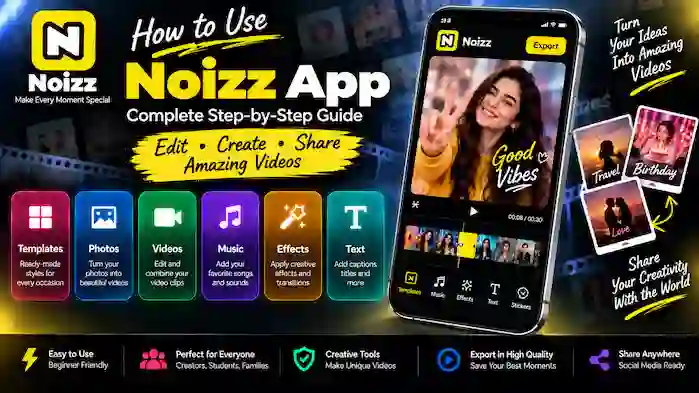
Learning how to use Noizz App is relatively straightforward when you understand the basic editing workflow. The app is designed around creative video creation, allowing users to combine photos and video clips with templates, music, effects, filters, and text.
Whether you want to create a short video from your favorite photos, edit existing clips, make a music-based video, or prepare content for social media, the basic process follows a simple sequence.
This guide explains how to use Noizz App from the beginning, including choosing a template, adding photos and videos, adding music, applying effects and filters, editing text, previewing your project, exporting the finished video, and sharing it.
Getting Started With Noizz App
Before creating your first project, make sure the app is installed on a compatible device and has the permissions it needs for the editing features you want to use.
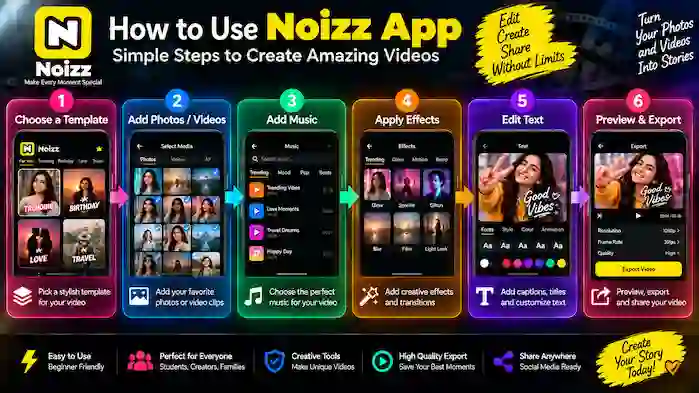
A typical Noizz editing workflow looks like this:
Open Noizz → Start a project → Choose a template or editing style → Add media → Add music → Apply effects → Edit text → Preview → Export → Share
The exact buttons and interface can change between versions, so your screen may look slightly different from screenshots or older tutorials.
For your first project, it is better to use a small number of photos or short video clips. This makes it easier to understand the available tools without making the project unnecessarily complicated.
How to Choose a Template
Templates provide a quick starting point for creating a video. Instead of building every transition and visual element yourself, you can select a style and customize it with your own media.
Step 1: Open the Template Section
Start Noizz and look through the available templates or creative styles.
You may find different categories depending on the current version, such as:
- Trending templates
- Event templates
- Birthday styles
- Travel templates
- Music-based templates
- Creative video styles
Step 2: Preview a Template
Before selecting a template, preview it if that option is available.
Pay attention to:
- Number of media slots
- Timing
- Transitions
- Music
- Visual effects
- Overall style
Choose a template that matches the photos or videos you want to use.
Step 3: Select the Template
Once you find a suitable option, select it and continue to the media-selection stage.
A template can save time, but you can still customize the available elements according to the options provided by the current version.
How to Add Photos in Noizz App
Adding photos is useful when you want to create a slideshow, photo montage, or photo-to-video project.
Step 1: Select Photos
Choose the photos you want to include from your device.
For a better result, select images that fit the same theme. For example, photos from one trip or event can work well together.
Step 2: Arrange Your Photos
If the editor provides ordering controls, arrange the images in the sequence you want viewers to see them.
Consider creating a simple visual story:
Beginning → Main Moments → Ending
Step 3: Adjust the Photos
Depending on the available editing controls, you may be able to crop, reposition, replace, or adjust individual images.
Make sure important parts of each photo remain visible inside the video frame.
Step 4: Continue Editing
Once your photos are arranged, you can add music, effects, filters, text, or other available creative elements.
How to Add Videos in Noizz App
Noizz can also be used with video clips where the current version supports video editing.
Step 1: Select Your Clips
Choose the video clips you want to use.
Shorter clips are often easier to manage, especially when you’re learning the editor.
Step 2: Arrange the Clips
Place the clips in the order that makes sense for your project.
You may want to start with an introduction, move to the main content, and finish with a final moment or image.
Step 3: Trim Unwanted Sections
If trimming controls are available, remove unnecessary portions from the beginning or end of clips.
This can make the final video feel more focused.
Step 4: Add Creative Elements
After arranging your clips, you can experiment with music, effects, filters, and text.
Try not to use too many effects at once. A consistent visual style usually makes a project easier to watch.
How to Add Music
Music can help connect different photos and video clips into one project.
Step 1: Open the Music Option
Look for the available music or audio controls inside the editing interface.
Step 2: Select Suitable Audio
Choose audio that matches the mood and subject of your video.
For example:
- Travel video → energetic or relaxed music
- Celebration → upbeat music
- Personal montage → softer background music
The available music library can vary depending on the app version, region, and licensing.
Step 3: Check the Timing
Preview the video with the selected music and make sure important visual moments work well with the audio.
Step 4: Consider Copyright
If you’re planning to publish the finished video publicly, make sure you have permission to use the selected music. Not every song available through an editing workflow is automatically cleared for every type of publication.
How to Apply Effects
Effects can make a video more dynamic and visually interesting.
To apply an effect, open the available effects section and browse the options provided by your version of Noizz.
You might find creative options such as:
- Animated effects
- Visual transitions
- Glitch-style effects
- Sparkle effects
- Motion effects
- Other creative styles
Select an effect and preview the result before keeping it.
Don’t Overuse Effects
Using several unrelated effects can make a project look inconsistent.
A better approach is to choose effects that support your video’s theme and use them selectively.
How to Use Filters
Filters can change the overall appearance of photos and videos.
They are useful when you want multiple clips or images to have a more consistent visual style.
Applying a Filter
- Open the filter or visual-adjustment option.
- Browse the available styles.
- Select a filter.
- Preview the result.
- Keep it if it improves the project.
If adjustment controls are available, use them carefully. The goal is to improve the appearance of the content rather than hide the original details.
How to Edit Text
Text can be useful for adding context, titles, captions, or short messages to your video.
Depending on the available version, you may be able to change elements such as:
- Text content
- Position
- Size
- Alignment
- Style
- Animation
Tips for Better Text
Keep text short and easy to read.
For example, instead of placing a long paragraph on a short video, use a concise title or message.
Also check that the text remains visible against the background and does not cover important parts of the photo or video.
How to Preview Your Noizz Video
Previewing your project before exporting is an important step.
Don’t export immediately after finishing the last edit. Watch the entire video from beginning to end.
Check:
- Photo order
- Video clips
- Music timing
- Effects
- Filters
- Text
- Transitions
- Beginning and ending
- Overall duration
Look for anything that appears too fast, too slow, misplaced, or difficult to read.
A complete preview can help you identify problems before creating the final exported file.
How to Export Videos
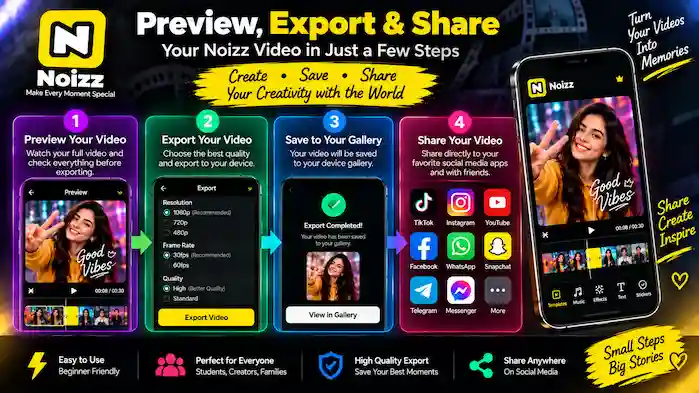
Once you’re satisfied with your project, the next step is exporting it.
Step 1: Finish Your Edits
Make sure all photos, videos, music, effects, filters, and text are correct.
Step 2: Preview the Complete Project
Watch the entire video one more time.
Step 3: Select Export
Use the export option provided by the current version of the application.
Available quality or resolution options can vary depending on the app version and device.
Step 4: Wait for Processing
Video export can take some time, particularly for larger projects.
Keep enough free storage available because the device may need space for the exported file and temporary processing data.
Step 5: Check the Exported Video
After export, open the finished video and make sure the quality, audio, text, and timing are correct.
How to Share Noizz Videos
After exporting your video, you can share it using the options available on your device.
You might share a finished project through supported social-media or messaging applications.
Before sharing, check:
- Video quality
- Audio
- Text
- Privacy
- Audience
- Copyright of music or other content
If your video contains personal photos or information about other people, make sure you’re comfortable with where and how it will be shared.
A Simple Noizz Workflow for Beginners
If you’re using Noizz for the first time, you don’t need to experiment with every tool immediately.
Try this simple workflow:
1. Choose Five to Ten Photos
Start with a small collection from the same event or theme.
2. Pick a Template
Choose a template that matches your content.
3. Add Your Photos
Replace the template media with your own images.
4. Add Music
Select suitable audio if available.
5. Apply One or Two Effects
Use a small number of effects to keep the video consistent.
6. Add a Short Title
Use simple text if your video needs context.
7. Preview
Watch the complete video.
8. Export
Create the final video using the available export settings.
9. Share
Save the final version and share it where appropriate.
How to Create a Photo-to-Video Project
One of the easiest projects for beginners is a photo-to-video montage.
Start by selecting several photos. Choose a template or editing style, then arrange your images in a logical sequence.
After that, add suitable music and apply a small number of transitions or effects. If needed, add a short title or caption.
Finally, preview the project and export it.
The complete process can be summarized as:
Photos → Template → Music → Effects → Text → Preview → Export
This workflow is suitable for travel memories, birthdays, celebrations, family events, and personal photo collections.
How to Make a Video With Existing Clips
If you already have video footage, the process is slightly different.
Start by selecting your clips and placing them in the desired order. Trim unnecessary sections where possible, then add music or other audio.
You can use filters and effects to create a consistent visual style and add text when context is necessary.
Before exporting, watch the entire video to make sure the transitions and timing feel natural.
Tips for Better Noizz Videos
Keep Your Project Focused
Choose photos and clips that belong to the same story or theme.
Don’t Use Too Many Effects
A few well-selected effects can be more effective than using something different on every clip.
Match Music to the Content
Choose audio that fits the mood and pace of the video.
Keep Text Readable
Use short messages and place them where they don’t cover important visual content.
Preview Before Export
Always check the complete video before producing the final file.
Leave Enough Storage
Video editing and export can require additional temporary storage space.
Common Problems When Using Noizz
Photos Are Not Showing
Check whether the app has the necessary media permissions and whether the photos are available on your device.
Video Clips Are Not Loading
Make sure the files are supported and accessible to the application. Large or unusual video formats may cause problems depending on the device and app version.
Music Is Not Available
Music availability can vary by region, licensing, and application version.
Effects Are Not Loading
Some creative features may require an internet connection or may change between versions.
Export Takes Too Long
Large projects can take longer to process. Freeing storage and reducing project complexity may help on devices with limited resources.
Exported Video Looks Different
Check the available export settings and preview the finished file after export. Quality can depend on the selected settings and device.
How to Use Noizz App for Social Media Content
Noizz can be useful for creating short videos intended for social platforms.
For this type of project, start with a clear idea and keep the video focused.
Use a suitable template, select high-quality photos or clips, add appropriate audio, and avoid unnecessary visual effects.
Before publishing, check the final video’s dimensions, quality, text placement, and copyright considerations.
How to Use Noizz App Efficiently
Once you understand the basic workflow, you can save time by planning your project before opening the editor.
Prepare your photos and clips first. Decide what type of video you want to make, then choose a template or editing approach that matches your content.
Instead of testing every effect individually, select a consistent visual style and use only the tools that improve the project.
This makes the editing process faster and can produce a cleaner final result.
Frequently Asked Questions
How do I use Noizz App?
Open the app, start a project or select a template, add photos or videos, customize the project with music, effects, filters, and text, preview the result, then export and share the finished video.
Can I create a video from photos in Noizz?
Yes, a photo-to-video workflow can combine multiple photographs with templates, music, effects, and other creative elements.
Can I add my own videos?
Video editing capabilities can allow users to work with existing clips, although supported formats and features may vary by application version and device.
How do I add music to a Noizz video?
Open the available music or audio option, select suitable audio, check the timing, and preview the project before exporting.
Can I add text to a Noizz video?
Where text tools are available, you can add titles, captions, or short messages and customize the available style and position options.
Can I use filters in Noizz?
Yes, filters can be used to change the visual appearance of photos or video clips where the current version provides those tools.
How do I export a Noizz video?
Complete your edits, preview the project, select the available export option, and wait for the video to finish processing.
Why is my Noizz video export taking a long time?
Large projects, high-quality settings, limited device resources, or insufficient storage can increase export time.
Is Noizz easy for beginners?
A template-based workflow can make Noizz easier for beginners because users can start with a predefined creative structure instead of creating everything manually.
Final Thoughts
Learning how to use Noizz App becomes much easier when you follow a simple editing workflow.
Start by choosing a template or project style, add your photos or video clips, then customize the project with music, effects, filters, and text. Always preview the complete video before exporting it, and check the final file before sharing.
For beginners, the best approach is to start with a small photo-to-video project and gradually experiment with more editing tools. As you become familiar with the workflow, you can combine templates, music, effects, filters, text, and video clips to create more customized content.