
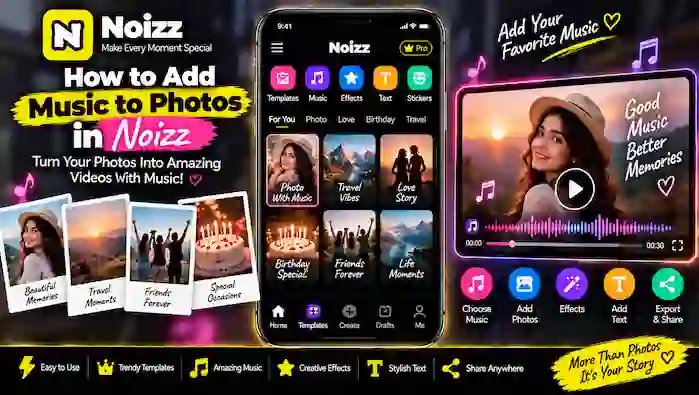
Adding music to photos can make a simple collection of pictures feel more like a complete video. Instead of sharing static images one by one, you can combine them with suitable audio, transitions, effects, and text to create a short visual story.
Noizz can be useful for creating Noizz photos with music, whether you want to make a birthday memory, travel montage, family video, or a simple photo presentation. In this guide, you will learn how to add music to photos Noizz projects, adjust your visuals, preview the result, and export the finished video.
Why Add Music to Photos in Noizz?
Photos show a moment, while music can help establish the mood of a video. When several pictures are combined with suitable audio, the final project can feel more engaging and easier to share.
You might add music to photos when creating:
- Birthday videos
- Travel memories
- Family photo videos
- Celebration clips
- Event highlights
- Friendship memories
- Short social media videos
- Personal photo montages
The available music and editing options can vary depending on your Noizz version, device, and region.
How to Add Music to Photos in Noizz
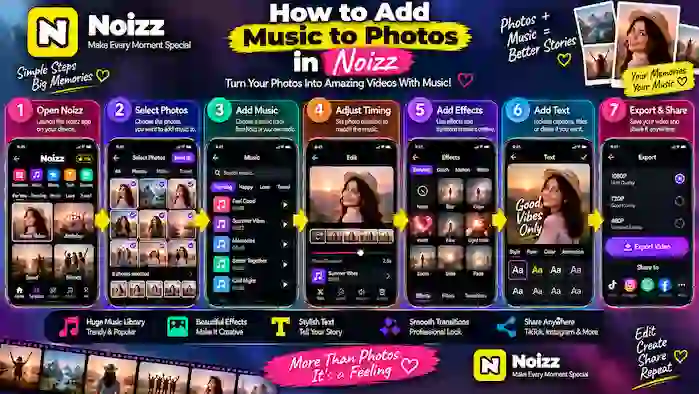
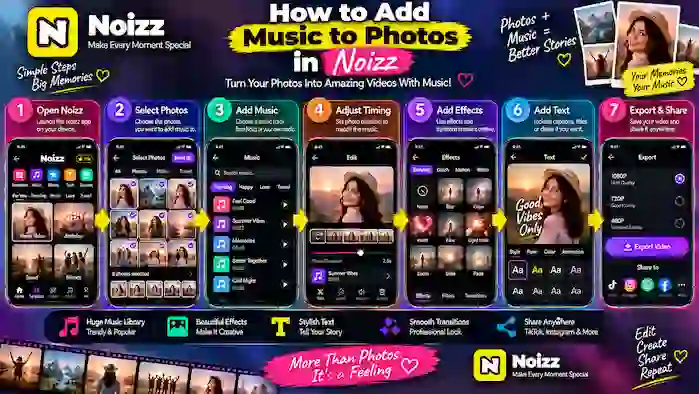
Step 1: Open Noizz and Start a Photo Project
Launch Noizz on your Android device and open the photo or video creation feature available in your version of the app.
If Noizz asks for access to your photos or media, review the permission request and allow access only when necessary for the project.
Once the editing screen opens, you can begin selecting the pictures you want to use.
Step 2: Select the Photos
Choose the photos that you want to include in your project.
For the best result, select pictures that have a common theme. For example, if you are making a travel video, choose images from the same trip. For a birthday project, select pictures related to the celebration.
Before moving forward, check the order of your photos. A logical sequence makes the final video easier to follow.
Step 3: Open the Music Option
After adding your photos, look for the music or audio option in the editing interface.
Depending on the current version of Noizz, you may see different music categories or audio choices. Browse the available options and choose a track that matches the mood of your photos.
If your version supports using personal audio, follow the app’s available options for selecting a suitable file from your device.
Always make sure you have the right to use any music you add, especially if you plan to publish the finished video publicly.
Step 4: Choose Music That Matches Your Photos
The right soundtrack can make a big difference.
For example, you might choose:
- Upbeat music for birthday photos
- Relaxing audio for travel memories
- Cheerful music for family moments
- Energetic sounds for an event video
- Calm background music for a simple slideshow
Try to match the pace and mood of the audio with the type of images you selected.
You do not necessarily need a loud or complicated soundtrack. A suitable background track can be enough to support the visuals.
Step 5: Adjust the Photo Timing
Once the music has been selected, check how long each photo stays on screen.
If the editing tools allow you to adjust photo duration, use the timing controls to create a comfortable pace. Photos that disappear too quickly may be difficult to appreciate, while very long durations can make the video feel slow.
When possible, use the music as a guide. Faster sections may work well with quicker photo changes, while slower sections can give important images more screen time.
Step 6: Add Transitions
Transitions help connect one photo to another.
Noizz may provide different transition styles depending on the available editing features. Simple fades, slides, or other smooth transitions can help maintain a consistent flow.
Avoid using a different transition for every image unless the style of your project specifically calls for it. Consistency usually creates a cleaner result.
Step 7: Add Effects and Filters
After setting up the music and photo sequence, you can enhance the visuals with available effects or filters.
For example, you might use a subtle effect to give the photos a consistent appearance or add a creative transition between important moments.
Remember that effects should support your photos rather than hide them. If the original images already look good, a few simple adjustments may be enough.
Step 8: Add Text or Captions
Text can provide additional context for your music-backed photo video.
You can add:
- A title
- Names
- Dates
- Locations
- Short captions
- Birthday wishes
- A closing message
Keep captions short and readable. If the music and visuals are already busy, too much text can make the video difficult to watch.
For example, a travel project might use a location name, while a birthday video could include a short greeting.
Step 9: Preview Your Photos With Music
Before exporting the project, use the preview option to watch the complete video.
Pay attention to the relationship between the photos and music.
Check:
- Does the music match the mood?
- Are the photos changing too quickly?
- Does the video feel too slow?
- Are transitions smooth?
- Is the text readable?
- Are all photos displayed correctly?
- Is the audio too loud compared with other elements?
Previewing the complete project gives you a chance to make corrections before creating the final file.
Step 10: Export and Share Your Video
When you are satisfied with the result, use the available export or save option.
If Noizz provides different quality settings, select one that suits your needs and available storage. Higher-quality exports can require more storage space.
After exporting, open the saved video and check it once more. You can then share it through the supported apps or platforms on your device.
Tips for Better Noizz Photos With Music
Select Photos With a Story
Instead of choosing random pictures, arrange them around a specific event or idea. This gives your video a beginning, middle, and ending.
Keep the Music Appropriate
The soundtrack should complement the photos. A suitable track can improve the mood without overpowering the visuals.
Match Timing to the Audio
If your editing tools provide timing controls, adjust photo duration so the images flow naturally with the music.
Use Effects Carefully
A few well-selected effects can add creativity. Too many effects may distract viewers from the photos.
Keep Text Simple
Use short captions that can be read quickly. Avoid covering important parts of your pictures with large blocks of text.
Check the Final Video
Always preview the entire project before exporting. This can help you catch incorrect photo order, timing issues, unwanted effects, or text mistakes.
Common Problems When Adding Music to Photos
Music Is Not Showing
If the music library does not appear, check your internet connection and restart the app. Available music can also depend on the current app version or region.
Personal Audio Cannot Be Selected
If your version supports personal audio but a file is unavailable, check whether the file is stored on your device in a supported format and whether Noizz has the required media permission.
Music and Photos Are Out of Sync
Try adjusting the duration of individual photos or changing the order of the images. Preview the project after each adjustment.
The Video Is Too Large
High-quality exports can create larger files. If storage is limited, consider using a lower available export quality or freeing some space on your device.
Exporting Does Not Work
Check your available storage, close unnecessary background apps, and restart Noizz. If an update is available from a legitimate source, updating the app may also resolve compatibility issues.
Ideas for Noizz Photos With Music
There are many ways to use this editing technique.
Birthday Memories: Combine favorite birthday pictures with cheerful music and short captions.
Travel Video: Arrange photos from a trip in chronological order and use a soundtrack that matches the journey.
Family Memories: Create a simple collection of family pictures with calm background music.
Friendship Video: Combine memorable pictures with an upbeat track and a few short messages.
Event Highlights: Turn event photos into a short video with music and smooth transitions.
Frequently Asked Questions
Can I add music to photos in Noizz?
Yes, when music or audio editing is available in your version of Noizz, you can combine photos with a suitable soundtrack to create a video.
Can I use my own music?
This depends on the features supported by your current Noizz version. If personal audio is supported, use the available audio-import option and select an appropriate file from your device.
Can I add text to photos with music?
Yes, where text editing is supported, you can add titles, captions, dates, names, or short messages to your project.
Can I change the photo timing?
If timing controls are available in your editing interface, you can adjust how long individual photos remain visible to create a better rhythm with the music.
Why does my Noizz music not work?
Check your connection, app permissions, and available updates. Music availability can also change based on the app version or region.
Final Thoughts
Creating Noizz photos with music is a simple way to transform a group of pictures into an engaging video. By selecting meaningful photos, choosing suitable audio, adjusting timing, and adding clean transitions and captions, you can create a polished result without making the editing process complicated.
If you want to add music to photos Noizz projects, start with a small collection of good-quality images and choose music that fits their mood. Preview the complete video before exporting, then save and share the finished creation using the options available on your device.