
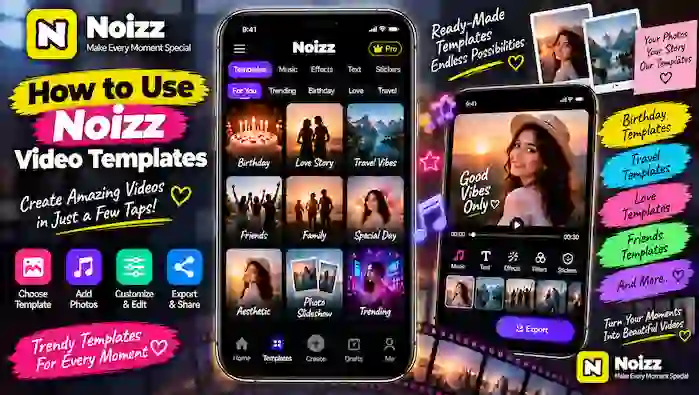
Creating a video from scratch can take time, especially when you want to combine photos, music, effects, transitions, and text. Noizz video templates can make this process easier by providing ready-made styles that you can customize with your own photos and other content.
Whether you want to create a birthday video, travel memory, friendship montage, or a simple photo video, templates can help you get started quickly. In this guide, you will learn how to use Noizz video templates, select the right style, add your photos, customize the video, and export the finished project.
What Are Noizz Video Templates?
Noizz video templates are pre-designed video styles that provide a starting structure for your project. A template may include visual effects, transitions, music, timing, text styles, or other creative elements.
Instead of manually creating every part of a video, you can choose a suitable template and replace or customize the available content.
The exact templates and editing features may vary depending on your Noizz app version, device, and region.
Why Use Noizz Video Templates?
Templates are useful when you want to create an attractive video without spending too much time building the project from the beginning.
Some benefits include:
- Faster video creation
- Ready-made visual styles
- Easy photo customization
- Built-in transitions and effects
- Music options in supported templates
- Different styles for different occasions
- Simple editing for beginners
Templates can also help maintain a consistent look throughout the video.
How to Use Noizz Video Templates
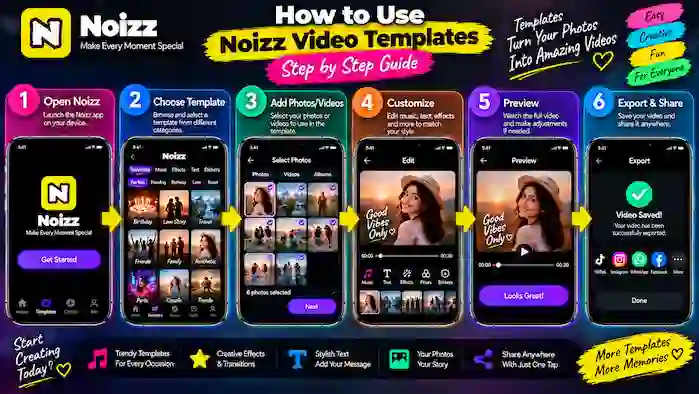
Step 1: Open Noizz
Launch the Noizz app on your Android device. From the main screen, look for the templates or video creation section available in your version.
If the app requests access to your photos or media, review the permission and allow access when necessary for selecting your content.
Step 2: Browse the Template Library
Open the template section and browse through the available styles.
You may find different categories depending on the current version of Noizz, such as:
- Trending
- Photo
- Birthday
- Travel
- Love
- Friends
- Events
- Memories
Look for a template that matches the type of video you want to create.
Step 3: Choose a Template
Tap a template to preview its style before using it.
Pay attention to the number of photos required, video length, music style, transitions, and overall design. Selecting a template that matches your available photos can make editing much easier.
For example, a template designed for several pictures may not be suitable if you only have two or three images.
Step 4: Add Your Photos or Videos
After selecting a template, follow the available instructions to add your own photos or videos.
Choose clear images that work well with the template’s layout. If the template uses portrait-style frames, portrait photos may fit better than wide images.
Review your selections before continuing to make sure the correct files are included.
Step 5: Arrange Your Content
If the template allows you to change the order, arrange your photos or clips so the video tells a simple story.
For example, a travel video can start with the beginning of the trip, continue through important locations, and finish with a memorable final picture.
A good sequence can make even a simple template feel more personal.
Step 6: Customize Music
Many video templates may include music or audio options. If customization is available, choose a track that matches the mood of your photos.
For a birthday project, cheerful music can work well, while calm audio may suit a travel or memory video.
If you use your own music, make sure you have the appropriate rights to use it, especially when publishing the video publicly.
Step 7: Edit Text and Captions
Some templates include text placeholders that you can customize.
You can add:
- Names
- Dates
- Locations
- Short captions
- Birthday wishes
- Event titles
- Closing messages
Keep text short and readable. Avoid covering important parts of your photos with large captions.
Step 8: Add or Adjust Effects
Depending on the template and app version, you may be able to customize effects, filters, or transitions.
Use these tools to improve the visual style while keeping the template consistent. Too many unrelated effects can make a video look cluttered.
If the template already has a strong visual design, only make changes that improve your project.
Step 9: Preview the Template Video
Before exporting, preview the entire video.
Check:
- Are the photos in the correct order?
- Does every image fit properly?
- Is the text readable?
- Does the music match the video?
- Are transitions smooth?
- Are there any unwanted effects?
- Is the final video too long?
This step can help you identify problems before creating the final file.
Step 10: Export and Share
Once you are satisfied with the result, use the available export or save option.
If different quality settings are offered, select an option that suits your needs and available storage. Higher-quality videos may require more space.
After exporting, open the finished video and check it before sharing it through the supported apps on your device.
Tips for Choosing the Right Noizz Template
Match the Template to Your Photos
Choose a template that supports the number and orientation of your images. This can reduce the amount of cropping or repositioning required.
Consider the Occasion
A birthday, travel, family, or event video may look better with a style designed for that specific purpose.
Preview Before Applying
Always preview a template when possible. A thumbnail may look different from the complete video.
Keep Your Style Consistent
If you customize colors, text, effects, or music, try to keep them consistent with the template’s original design.
Use High-Quality Photos
Clear photos generally produce a better-looking final video than heavily compressed or blurry images.
Popular Ideas for Noizz Video Templates
Birthday Videos
Combine birthday pictures with a celebration-focused template, music, captions, and suitable effects.
Travel Memories
Use a travel-style template to combine destination photos and memorable moments into one short video.
Friendship Videos
Create a collection of memorable pictures with friends and add short captions or messages.
Family Memories
Combine family photos into a simple montage using smooth transitions and suitable background music.
Event Highlights
Use a template to turn event pictures into a quick highlight video that is easy to share.
Common Noizz Template Problems
Template Is Not Loading
Check your internet connection and restart the app. Some templates may depend on online services or may not be available in every region.
Photos Do Not Fit Correctly
Try using photos with a suitable orientation or crop them using the available editing controls.
A Template Is Missing
Template availability can change with app updates, regional availability, or changes to the service. A template seen previously may not always remain available.
Export Fails
Check your device storage and make sure the selected media is accessible. Restarting the app or updating it through a legitimate source may also help.
Video Looks Different After Export
Preview the project before exporting and check the selected quality settings. Some differences can occur between the editing preview and the final rendered video.
Frequently Asked Questions
What are Noizz video templates?
They are pre-designed video styles that provide elements such as layouts, transitions, effects, text styles, or music options for creating customized videos.
Can I add my own photos to a Noizz template?
Yes, when supported by the selected template, you can replace its media with your own photos or videos.
Can I change the music in a Noizz template?
This depends on the template and current Noizz version. If audio customization is available, you can select from the supported music options.
Can I add text to Noizz templates?
Yes, templates that support text customization may allow you to add names, captions, dates, titles, or short messages.
Are all Noizz templates available on every device?
Not necessarily. Template availability can vary by app version, device, region, and other service-related factors.
Final Thoughts
Noizz video templates provide a convenient starting point for creating customized videos from photos and other media. Instead of building every element manually, you can select a suitable template, add your content, customize music and text where supported, preview the result, and export the finished video.
For the best results, choose a template that matches your photos and the purpose of your project. Keep your edits simple, use clear images, and always preview the complete video before sharing it.