
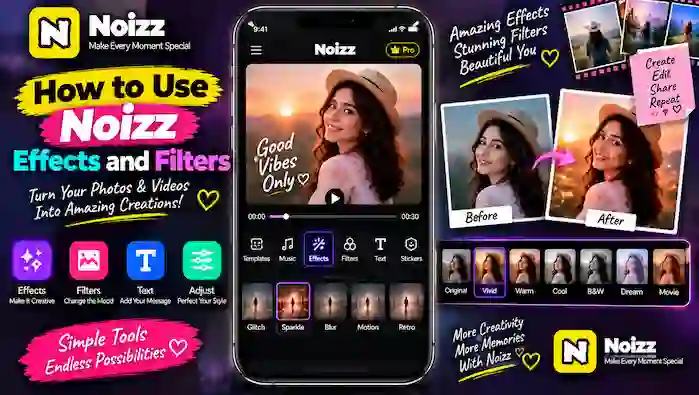
Effects and filters can change the overall look and mood of a photo or video with just a few adjustments. Instead of editing every detail manually, you can use creative effects and visual filters to give your content a different style.
Noizz provides editing options that can help users enhance photos, videos, and template-based projects. Whether you want a colorful birthday video, a stylish photo montage, or a simple social media clip, learning how to use Noizz effects and filters can make your projects more creative.
In this guide, you will learn how to find effects and filters in Noizz, apply them to your content, adjust your edits, preview the result, and export the finished project.
What Are Noizz Effects and Filters?
Effects and filters are visual editing tools used to change the appearance of photos and videos.
A filter generally changes the overall visual appearance of your content, such as its tone, brightness, contrast, or style.
An effect can add a specific visual element or animation, such as light effects, blur, motion, sparkle, or other creative overlays.
The exact options available can vary depending on your Noizz version, device, and region.
Why Use Noizz Effects and Filters?
Using the right effect or filter can help create a consistent visual style without requiring advanced editing knowledge.
You can use them to:
- Improve the overall appearance of photos
- Create a specific mood
- Make videos more visually interesting
- Add creative transitions or overlays
- Give a photo montage a consistent style
- Enhance birthday and celebration videos
- Create social media-ready content
- Add variety to template-based projects
The key is to use effects and filters in moderation so the original photos and videos remain clear.
How to Use Noizz Effects and Filters
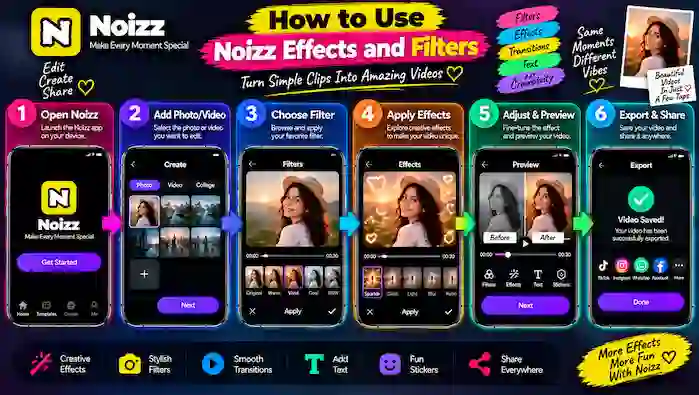
Step 1: Open Noizz
Launch the Noizz app and start a new editing project or open an existing project, depending on the options available in your version.
You can work with photos, videos, or a template-based project.
If Noizz requests access to your media, review the permission and allow it when necessary for selecting your content.
Step 2: Add Your Photo or Video
Select the photo or video you want to edit.
For a slideshow or template project, choose the relevant images or clips first. Using clear, good-quality media can help produce a better final result.
Once your content is loaded into the editor, look for the available editing tools.
Step 3: Find the Effects and Filters
Open the Effects or Filters section in the editing interface.
Depending on your current Noizz version, you may see different categories and editing options. Browse through the available choices and preview them before applying one.
Some effects may be designed for specific types of videos, while others can work with a wide range of content.
Step 4: Choose a Filter
Start by testing a few filters on your photo or video.
A filter can change the overall appearance of your content, so choose one that matches the mood you want.
For example:
- Use a bright style for celebrations.
- Choose a warm look for travel memories.
- Try a softer style for family photos.
- Use a more dramatic look for creative videos.
Avoid choosing a filter simply because it looks impressive in the preview. Consider whether it actually works with your original image.
Step 5: Apply a Creative Effect
After selecting a filter, explore the available effects.
Depending on the version of Noizz, effects may include options such as:
- Sparkle
- Blur
- Glow
- Motion
- Zoom
- Light effects
- Retro styles
- Other animated effects
Select an effect and preview how it changes your content.
If the effect is too strong, try another option or reduce its intensity if an adjustment control is available.
Step 6: Combine Effects Carefully
You may be able to combine different editing elements, but this does not mean you should use everything at once.
For example, a photo may already have a strong filter, so adding several animated effects could make it look cluttered.
A better approach is to choose one main visual style and add only a few supporting effects.
This is particularly useful when creating a video with multiple photos because consistent editing makes the final project look more organized.
Step 7: Adjust the Effect or Filter
If adjustment controls are available, fine-tune the selected effect or filter.
You may be able to control aspects such as intensity, duration, or position depending on the editing tool.
Small adjustments can often produce a more natural result than applying an effect at its strongest setting.
For videos, also check whether the effect should appear throughout the entire clip or only during a particular section.
Step 8: Add Filters to Multiple Photos
When creating a photo video or slideshow, consistency is important.
If possible, use a similar filter style across your main photos. This helps the images feel like part of the same project.
For example, if you are creating a travel slideshow, using similar visual tones throughout the photos can make the final video look more cohesive.
You can still use different effects for special moments, but try to maintain an overall visual theme.
Step 9: Preview Your Project
Before exporting, watch or view the complete project.
Check whether the effects and filters improve the content without hiding important details.
Look for:
- Overly strong filters
- Excessive brightness or darkness
- Distracting animations
- Unwanted blur
- Effects covering faces or important objects
- Inconsistent styles between photos
- Effects lasting too long
If something does not look right, return to the editor and make adjustments.
Step 10: Export the Final Video
Once your project looks good, use the available export or save option.
If different quality settings are available, choose one based on your intended use and available storage.
After exporting, open the final video and watch it once more. This helps confirm that the effects, filters, music, text, and transitions were rendered correctly.
Best Tips for Using Noizz Effects and Filters
Start With the Original Content
Before adding effects, look at your original photo or video. Understanding what needs improvement can help you choose a suitable filter.
Avoid Over-Editing
Too many effects can distract viewers from the main subject. A simple visual style can often look more professional.
Match Effects With the Occasion
Choose effects that fit the purpose of the video. Celebration content may work with energetic effects, while memory videos may benefit from softer visual treatments.
Keep Similar Photos Consistent
When making a slideshow, try to use filters that create a similar appearance across your images.
Preview Before Exporting
Never rely only on the editing thumbnail. Watch the complete project before exporting to check timing and visual consistency.
Use High-Quality Media
Effects cannot completely fix a low-quality or blurry source image. Start with the clearest photos and videos available.
Noizz Effects vs Filters
Although the terms are sometimes used together, effects and filters serve different purposes.
| Feature | Main Purpose |
| Filters | Change the overall visual appearance |
| Effects | Add creative visual elements or animations |
| Transitions | Connect one clip or photo to another |
| Text | Add titles, captions, or messages |
Using these tools together can create a more complete editing style, but each should have a clear purpose.
Effects and Filters for Different Videos
Birthday Videos
Bright filters, sparkle effects, colorful overlays, and simple animated elements can work well for birthday projects.
Travel Videos
Warm or natural-looking filters can complement landscapes, outdoor photos, and travel memories.
Family Videos
Simple filters and smooth effects can help keep the focus on the people and memories.
Social Media Videos
Creative effects can make short videos more eye-catching, but make sure they do not reduce readability or hide important content.
Photo Slideshows
Consistent filters combined with subtle transitions can give a slideshow a unified appearance.
Common Problems With Noizz Effects and Filters
Effects Are Not Loading
Check your internet connection and restart the app. Some effects may depend on online services or may not be available in every region.
A Filter Is Missing
Available filters can change with app updates, regional availability, or changes to the service. A filter available previously may not always appear.
Effects Make the Video Look Too Busy
Remove unnecessary effects or reduce their intensity when adjustment controls are available. Keeping one clear visual style usually produces a cleaner result.
The App Becomes Slow
Effects and video editing can require device resources. Close unnecessary background apps and make sure your device has sufficient free storage.
Exported Video Looks Different
Preview the project carefully and check the selected export quality. Some visual differences can occur between editing previews and the final rendered file.
Frequently Asked Questions
How do I use Noizz effects?
Open a photo or video project, find the Effects section, select an available effect, preview it, and adjust it when the app provides customization controls.
How do I use Noizz filters?
Select your photo or video, open the Filters section, preview different styles, and choose the filter that best matches your project.
Can I use effects and filters together?
If your current Noizz version supports both options in the same project, you can combine them. Use them carefully to avoid making the video look cluttered.
Can I apply filters to photos in a slideshow?
Yes, when the editing tools support it, filters can be used to create a consistent visual style across photos in a slideshow.
Why are some Noizz effects unavailable?
Effect availability can depend on the current app version, device, region, or service changes.
Do effects reduce video quality?
An effect itself does not necessarily mean lower quality, but the final result also depends on the original media and export settings you choose.
Final Thoughts
Learning how to use Noizz effects and filters can help you create more creative photos and videos without complicated editing. Filters can establish the overall visual mood, while effects can add motion, light, blur, or other creative elements.
For the best results, start with good-quality photos or videos, choose a style that matches your project, and avoid adding more effects than necessary. Preview everything before exporting so your final video looks clean, balanced, and ready to share.