
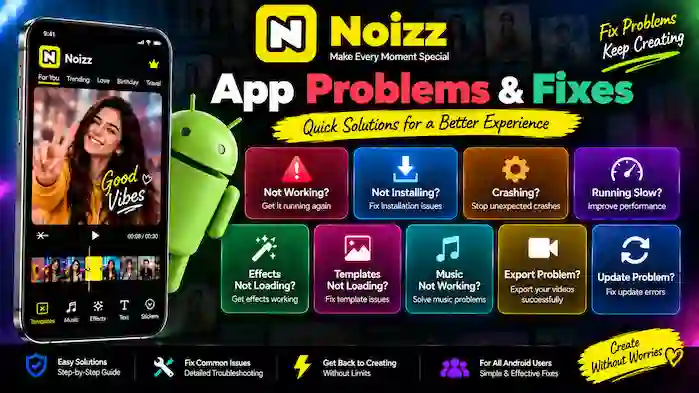
Running into Noizz App problems can be frustrating, especially when you’re trying to create or export a video. Issues such as the app not working, installation failures, crashes, slow performance, missing effects, unavailable templates, music problems, export errors, or update issues can have several different causes.
Fortunately, many common problems can be checked and resolved with a few basic troubleshooting steps.
This guide covers the most common Noizz App problems and fixes, including installation, crashes, performance, templates, effects, music, exporting, and updates. The exact menus and options may vary depending on your Android version, device manufacturer, and current Noizz version.
Noizz App Not Working
If Noizz App is not working, start with the simplest possible checks before changing advanced settings.
First, close the application completely and open it again. If the problem continues, restart your Android device.
You should also check:
- Your internet connection
- Available storage
- Android compatibility
- App permissions
- Application version
- Device performance
If other applications are also experiencing problems, the issue may be related to your device rather than Noizz itself.
Quick Fix
Try this basic sequence:
Close Noizz → Restart phone → Check internet → Check storage → Reopen Noizz
If the issue remains, continue with the specific troubleshooting sections below.
Noizz App Not Installing
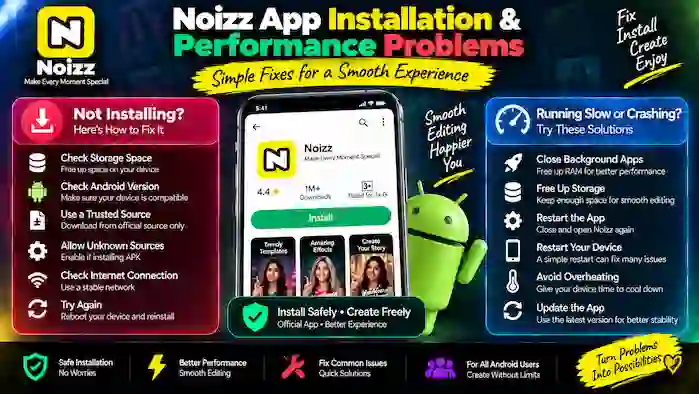
One common problem is Noizz App not installing correctly.
An installation can fail for several reasons, including insufficient storage, an incompatible Android version, a damaged installation package, or problems with the download source.
Check Available Storage
Make sure your phone has enough free storage for the application and its installation process.
If your device is almost full, remove unnecessary files or move important media to another safe storage location.
Check Android Compatibility
An application version may require a specific Android version. If your phone uses an older operating system, the current version may not be compatible.
Check the current application requirements before attempting another installation.
Verify the Installation Source
If you’re installing through an official application distribution platform, verify that you’re selecting the correct application.
If you’re using an APK, make sure the file came from a trustworthy source and has not been damaged or modified.
Don’t repeatedly download random APK files simply because the first installation failed.
Noizz APK Installation Problem
Manual APK installation can create additional problems compared with a normal app-store installation.
If a Noizz APK does not install, check:
- APK version
- Android version
- Device compatibility
- File integrity
- Available storage
- Source of the APK
- Android security warnings
Avoid cracked, patched, or modified APK files from unknown websites.
If Android displays a warning about the installation package, investigate the warning rather than automatically bypassing it.
Noizz App Crashing
If Noizz App keeps crashing, the cause may be related to compatibility, device resources, storage, application bugs, or a problematic project.
Start by restarting the application and your device.
Then check whether your phone has sufficient free storage and whether you’re using a compatible version of Noizz.
Reduce Project Complexity
Large video projects can place additional demands on a phone.
If Noizz crashes while editing a particular project, try:
- Using fewer clips
- Reducing project size
- Removing unnecessary effects
- Working with smaller video files
- Closing other background applications
If the application only crashes with one specific project, the project itself may be contributing to the problem.
Noizz App Is Slow
A slow Noizz experience can be caused by limited device resources, insufficient storage, large media files, or too many applications running in the background.
Improve Performance
Try these steps:
- Close unnecessary background applications.
- Free up storage space.
- Restart your device.
- Use smaller projects.
- Reduce unnecessary effects.
- Avoid editing extremely large files when possible.
- Check for a legitimate application update.
Check Your Device
Video editing can require more processing power than basic mobile applications.
Older or lower-powered devices may take longer to load projects, apply effects, or export videos.
If your phone becomes warm or noticeably slower during editing, give it time to process demanding tasks and avoid unnecessarily large projects.
Noizz Effects Not Loading
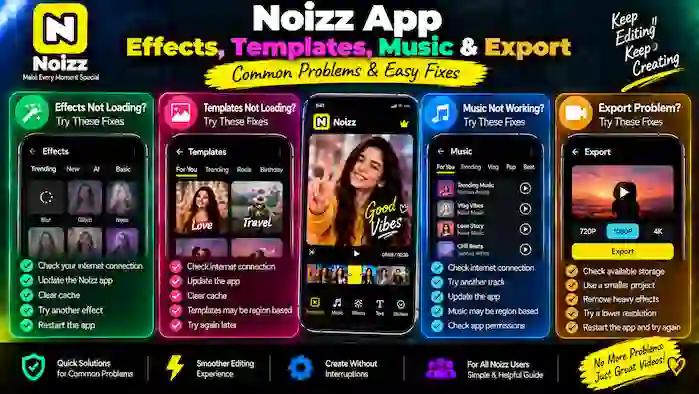
If Noizz effects are not loading, the issue may be related to the internet connection, application version, or online content availability.
First, check your internet connection.
Try switching between available network connections if possible and then reopen Noizz.
You should also check whether you’re using a current compatible version of the application.
Other Things to Check
- Restart Noizz
- Restart your device
- Check your connection
- Verify available storage
- Check for application updates
- Try another effect
If only one effect is unavailable while others work normally, the issue may be specific to that particular resource.
Noizz Templates Not Loading
Templates may sometimes fail to appear or load correctly.
If Noizz templates are not loading, check your internet connection first, especially if the templates depend on online content.
Then try restarting the app.
Also check whether:
- The application is updated
- Your device has sufficient storage
- Other online features are working
- The template is still available
Template libraries can change over time, so a template shown in an older tutorial may not necessarily appear in the current application.
Noizz Music Not Working
Music problems can prevent a video from having the audio you want.
If Noizz music is not working, first check whether other music options are available.
Then verify your internet connection if the music feature relies on online resources.
Possible Causes
Music availability can vary because of:
- Application version
- Region
- Licensing
- Internet connection
- Temporary service problems
If one particular song is unavailable while other audio options work, the problem may be related to availability or licensing rather than your device.
When publishing videos publicly, also make sure you have appropriate rights to use the selected music.
Noizz Export Problem
One of the most frustrating issues is when a finished project cannot be exported.
A Noizz export problem can be related to insufficient storage, a large project, device resources, or a problematic media file.
Check Storage
Video export may require additional temporary storage.
If your phone has very little free space, delete or move unnecessary files and try the export again.
Reduce Project Size
If a large project fails to export, try creating a simpler version.
You can:
- Remove unnecessary clips
- Reduce the number of effects
- Use smaller media files
- Shorten the project
- Try exporting again
Check Individual Media Files
If export always fails at a similar point, one photo, video, audio file, or effect may be contributing to the problem.
Try removing the most recently added element and export again.
Noizz Video Export Is Taking Too Long
Export speed depends on the device, project complexity, media resolution, effects, and available resources.
A longer or more complex video can take considerably more time to process.
Before assuming the application has stopped working:
- Keep the app open
- Make sure sufficient storage is available
- Avoid running demanding applications at the same time
- Give larger projects additional processing time
If exports repeatedly take an unusually long time, try a smaller test project to determine whether the problem is related to the specific project.
Noizz App Update Problem
Application updates can sometimes fail because of storage, compatibility, network, or installation issues.
If Noizz App is not updating, check your internet connection first.
Then make sure your phone has enough free storage and that your Android version supports the newer application version.
If You Installed an APK
If your current Noizz installation came from an APK, be especially careful when updating manually.
Verify the new package before installing it and avoid replacing a working installation with an unknown or modified APK.
When an official update option is available, it is generally easier to manage updates through the legitimate distribution channel.
Noizz App Permissions Problem
Some Noizz features may require access to photos, videos, or other device resources.
If Noizz cannot access your media, check its permissions through Android settings.
The exact location of permission controls can vary between Android versions and device manufacturers.
Check Media Permissions
If you want to import a photo or video but Noizz cannot see it:
- Open your Android settings.
- Find the application permissions.
- Locate Noizz.
- Review its media or photo permissions.
- Allow the appropriate access if needed.
- Reopen the application.
Only grant permissions that are relevant to the features you intend to use.
Noizz Cannot Access Photos
If your photos are missing from the media picker, permissions are one of the first things to check.
Other possible causes include:
- The photo is stored in an inaccessible location
- The media library has not refreshed
- The file format isn’t supported
- The application needs to be restarted
- The application version has compatibility issues
Try selecting another photo to determine whether the problem affects all images or only a particular file.
Noizz Cannot Access Videos
Video access problems can have similar causes.
Check that the video exists on your device and that Noizz has the appropriate media access.
If one particular video cannot be imported, try another clip.
Large or unusual video files may also behave differently depending on the device and application version.
Noizz Features Not Showing
If a feature shown in an older tutorial is missing from your version of Noizz, don’t immediately assume that your installation is broken.
Features can change between application versions and may also vary by region or availability.
Check whether:
- You’re using the current version
- The feature has moved to another section
- Your device is compatible
- The feature requires an internet connection
- The feature is currently available in your region
Noizz App Freezes During Editing
If the application becomes unresponsive while editing, give it a moment if the project is processing a demanding task.
If it remains frozen, close and reopen the application.
To reduce the chance of repeated freezes:
- Free up storage
- Close background applications
- Use smaller projects
- Reduce the number of effects
- Keep the application updated when compatible
If the problem occurs only with a particular project, create a smaller test project to identify whether that project is causing the issue.
Noizz App Has No Sound
If your exported or previewed video has no sound, check your device volume and the project’s audio settings.
Also verify whether the selected audio is actually present in the project.
Try another audio option to determine whether the problem affects one track or all audio.
If audio works in other applications but not in Noizz, restarting the app may help.
Noizz App Camera or Media Features Not Working
If a feature requires camera or media access, check the application’s permissions.
Android permission controls can prevent an application from accessing certain device functions.
Review the relevant permission and only enable access when it is necessary for the feature you’re trying to use.
Basic Noizz Troubleshooting Checklist
If you don’t know exactly what’s causing the problem, work through this checklist:
1. Restart Noizz
Close the application and open it again.
2. Restart Your Phone
A device restart can resolve temporary software problems.
3. Check Internet
Online templates, music, effects, or other connected features may require a stable connection.
4. Check Storage
Make sure you have enough free space for the application and your editing projects.
5. Check Permissions
Verify that Noizz has the appropriate access to media and other required resources.
6. Check Compatibility
Make sure your Android version and device support the installed application version.
7. Check for Updates
Look for a legitimate newer version when appropriate.
8. Test a Small Project
A small project can help determine whether the issue is related to a particular large or complex project.
When to Reinstall Noizz
Reinstalling an application can sometimes resolve persistent software problems, but it should not be the first troubleshooting step.
Before reinstalling, make sure important projects or exported videos are safely saved.
If the application is working but only one feature is broken, reinstalling may not necessarily solve the problem.
If you do reinstall, obtain the application from a legitimate source and verify that the version is compatible with your device.
Troubleshooting Noizz on Older Android Devices
Older devices may experience more performance-related problems when working with modern video editing applications.
If you use an older Android phone:
- Keep sufficient storage available
- Close background apps
- Use smaller projects
- Reduce unnecessary effects
- Check Android compatibility
- Avoid excessively large media files
- Use a compatible Noizz version
Don’t install an unknown old APK simply because it claims to work on an older phone.
Older software may lack current fixes, features, and security improvements.
Noizz App Problems After an Update
Sometimes an application can behave differently after an update.
If Noizz starts having problems immediately after an update, first restart the application and device.
Then check whether the issue affects:
- All projects
- Only one project
- A particular feature
- Online resources
- Export
- Media importing
This information can help narrow down the cause.
If the issue is widespread, check the application’s current information for known compatibility or update-related issues.
How to Prevent Noizz Problems
You can reduce the likelihood of common problems by maintaining both the application and your Android device.
Keep Enough Storage
Don’t allow your phone’s storage to remain almost completely full.
Use Compatible Versions
Install versions that match your Android device’s requirements.
Keep Software Updated
Use legitimate updates when they are compatible with your device.
Avoid Modified APKs
Unknown modified packages can introduce problems that are difficult to diagnose.
Use Reliable Internet
A stable connection can help when accessing online templates, music, effects, or other resources.
Keep Projects Manageable
Very large projects can place additional demands on your phone.
Noizz App Problems FAQs
Why is Noizz App not working?
Restart the app and your phone, then check your internet connection, storage, permissions, compatibility, and application version.
Why is Noizz App not installing?
Possible causes include insufficient storage, an incompatible Android version, a damaged installation package, or an unreliable download source.
Why does Noizz keep crashing?
Crashes can be caused by compatibility issues, limited device resources, insufficient storage, application bugs, or demanding projects.
Why is Noizz App so slow?
Large projects, high-resolution media, limited device resources, background applications, and low storage can affect performance.
Why are Noizz effects not loading?
Check your internet connection, application version, storage, and whether other effects are working. Some resources may also change in availability.
Why are Noizz templates not loading?
Templates may depend on online services. Check your connection, restart the app, and verify that you’re using a current compatible version.
Why is Noizz music not working?
Music availability can depend on the application version, region, licensing, internet connection, or availability of a particular track.
Why won’t Noizz export my video?
Check available storage and project complexity. Try a smaller project or remove recently added media or effects to identify the cause.
Why is my Noizz export taking so long?
Large projects and high-resolution media can require more processing time. Device performance and available storage can also affect export speed.
Why won’t Noizz update?
Check your internet connection, storage, Android compatibility, and the legitimacy of the update source.
Should I reinstall Noizz if it isn’t working?
Reinstallation can be considered after basic troubleshooting, but save important projects first and reinstall only from a legitimate source.
Can an older Noizz version fix problems?
An older version may sometimes behave differently on a particular device, but outdated software can lack current features, fixes, and security improvements.
Final Thoughts
Most Noizz App problems can be narrowed down by checking a few basic areas: compatibility, storage, permissions, internet connection, application version, device performance, and project size.
If Noizz isn’t working, start with a simple restart and then move through the relevant troubleshooting steps. For installation problems, verify the Android requirements and download source. For crashes or slow performance, check storage and reduce project complexity. For templates, effects, and music problems, check connectivity and feature availability.
Export problems often require checking storage and the complexity of the project, while update problems may be related to compatibility or the installation source.
The safest approach is to use a legitimate application version, keep your Android device reasonably updated, maintain enough free storage, and avoid unknown modified APK files.
By following these troubleshooting steps, you can identify many common Noizz issues and get back to creating and editing your videos.