
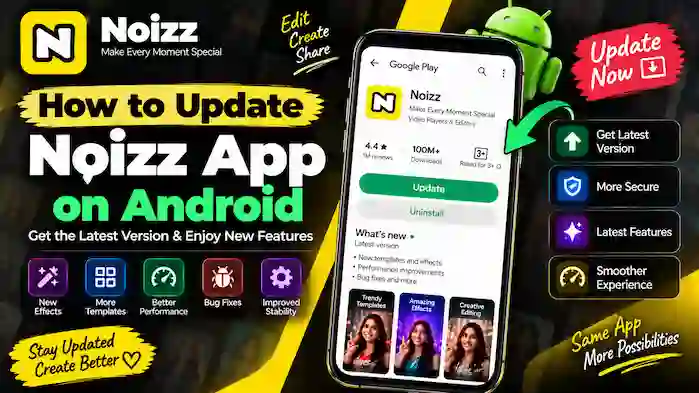
Keeping your video editing app updated can help you access newer features, improvements, bug fixes, and compatibility changes. If you’re wondering how to update Noizz App on Android, the process depends on how Noizz was originally installed.
For most Android users, updating through the Google Play Store is the simplest approach when the legitimate app listing is available. Users who installed Noizz manually through an APK may need to handle the update differently.
This guide explains how to update Noizz App, how to check for the Noizz latest version, how APK updates work, what to check before updating, and how to troubleshoot common update problems.
Why Update Noizz App?
Application updates can introduce changes that improve the overall experience.
A newer Noizz version may include:
- New editing features
- New templates
- Additional effects
- Performance improvements
- Bug fixes
- Compatibility improvements
- Changes to existing tools
- Stability improvements
Not every update will contain all of these changes, and available features can vary by version, device, and region.
Keeping an application reasonably current can also reduce compatibility problems with newer Android versions.
How to Check Your Current Noizz Version
Before updating, it can be useful to find out which version you currently have installed.
Depending on your Android device, you may be able to check the application information through Android settings.
A typical process is:
- Open Settings.
- Go to Apps or Applications.
- Find Noizz.
- Open its application information.
- Look for the installed version number.
The exact menu names can differ between Android manufacturers and operating-system versions.
Knowing your current version makes it easier to determine whether an update is actually available.
How to Update Noizz App From Google Play Store
If Noizz is available through the legitimate Google Play Store listing for your device, updating from there is generally the easiest option.
Step 1: Open Google Play Store
Open the Play Store on your Android phone.
Step 2: Search for Noizz
Search for the Noizz application and verify that you have selected the correct listing.
Pay attention to the application name and publisher information rather than installing a similarly named application.
Step 3: Check for an Update
If an update is available, the listing should provide an Update option.
If you only see Open, there may not be an available update for your device at that moment.
Step 4: Start the Update
Select the update option and allow the Play Store to download and install the newer version.
A stable internet connection can make the process smoother.
Step 5: Open Noizz
After the update has completed, open Noizz and check that your editing tools and projects are working normally.
How to Check for the Noizz Latest Version
The phrase Noizz latest version can refer to the newest release available for a particular platform, device, region, or distribution channel.
Instead of relying on an APK website claiming to offer the “latest version,” check a legitimate application listing or official application information whenever possible.
When comparing versions, look at:
- Version number
- Release information
- Android compatibility
- Available features
- Update date
- Publisher information
A website may label an APK as “latest” even when the file is old, modified, or incorrectly identified.
How to Update Noizz APK
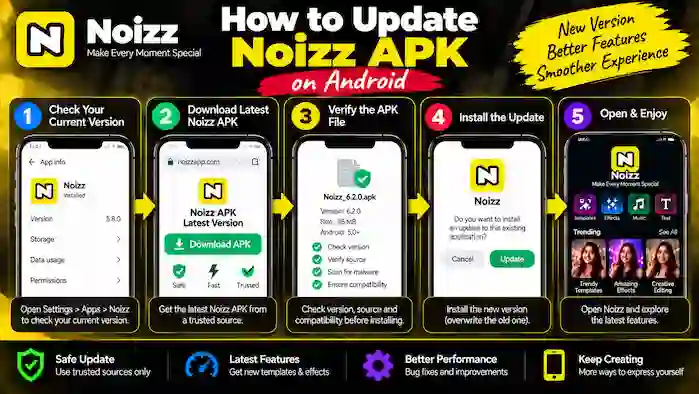
If you installed Noizz manually through an APK, the update process can be different.
To update Noizz APK, first obtain a newer legitimate package from a trustworthy source.
Before installing it, check:
- APK version
- Android compatibility
- Package authenticity
- Source reliability
- Available storage
- Security warnings
Do not install a random APK simply because its version number appears newer.
Basic APK Update Process
A general workflow is:
Check current version → Find legitimate newer package → Verify source → Check compatibility → Install update → Open Noizz → Test features
The exact Android prompts can vary between devices.
Should You Update Noizz APK Manually?
Manual updates can be useful in specific situations, but they require more attention than Play Store updates.
You need to verify the package yourself and make sure the newer version is appropriate for your device.
If an official update is available through the Play Store and your device supports it, using that route is generally more convenient.
Manual APK updates are better suited to users who have a legitimate reason to manage the package themselves and understand the associated compatibility and security considerations.
What to Check Before Updating Noizz
Before installing a major update, take a few minutes to prepare your device.
Check Storage
Make sure you have enough free space for the update and your existing projects.
Video editing can also require additional storage for exported videos and temporary files.
Check Android Compatibility
Make sure the newer Noizz version supports your Android version.
A newer release isn’t necessarily compatible with every older phone.
Save Important Projects
If you have important unfinished projects, make sure they are safely saved before performing a major application update.
Check Your Internet Connection
For Play Store updates, a stable connection can prevent interrupted downloads.
Verify the Update Source
If updating through an APK, confirm the source before opening the installation package.
What Happens After Updating Noizz?
After updating, the application may look slightly different.
You may notice:
- Updated menus
- New templates
- New effects
- Changed editing controls
- Performance changes
- New settings
- Updated interface elements
Don’t assume something is broken simply because a button has moved.
Application interfaces can change between releases.
How to Know If Noizz Updated Successfully
After the update, check the installed version again through your Android application settings.
You can also open Noizz and test a few basic functions.
For example:
- Open Noizz.
- Select a small project.
- Import a photo or video.
- Try a template.
- Test an effect.
- Preview the project.
- Export a short test video.
This can help confirm that the application is functioning correctly after the update.
Noizz App Update Not Showing
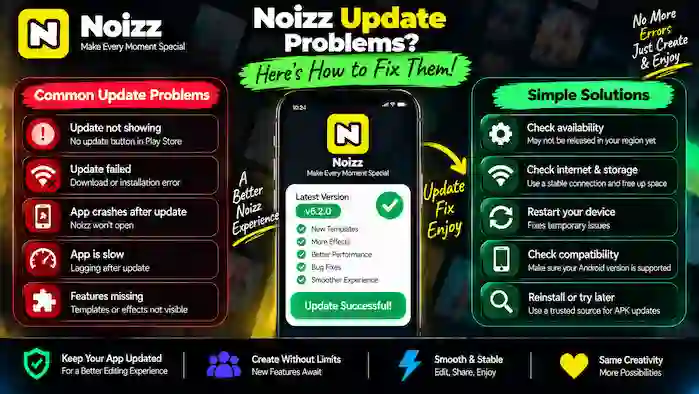
Sometimes users expect an update but don’t see an Update button.
Several factors can explain this.
No Update Is Currently Available
The newest release may not yet be available for your particular device or region.
Your App Is Already Current
If the installed version matches the version currently available to your device, the Play Store may only show Open.
Compatibility Restrictions
A newer version may not support your Android environment.
Staged Availability
Application releases can sometimes become available at different times across devices or regions.
For this reason, avoid assuming that every website listing a version number represents the newest version available to your specific device.
Noizz Update Failed
If a Noizz update fails, start with basic checks.
Check Storage
Free up space if your phone is nearly full.
Check Internet
Make sure your connection is stable.
Restart the Device
A restart can resolve temporary Android or Play Store issues.
Check Android Compatibility
Make sure your device supports the version you’re trying to install.
Try Again Later
Temporary distribution or network problems can sometimes affect updates.
Noizz APK Update Failed
If a manually installed APK won’t update, the package may have compatibility or installation issues.
Possible causes include:
- Incorrect APK version
- Damaged package
- Incompatible Android version
- Insufficient storage
- Package conflicts
- Untrusted or modified APK
Verify the package before trying another installation.
Avoid downloading multiple random APK files to solve the problem.
Noizz Won’t Open After an Update
If Noizz worked before an update but won’t open afterward, start with a device restart.
Then check whether the application is compatible with your Android version and whether sufficient storage remains available.
If the issue continues, test whether other applications are working normally.
For important projects, avoid immediately deleting the application because doing so may affect locally stored application data.
Noizz Is Slow After an Update
A newer version can sometimes behave differently on older or lower-powered devices.
If Noizz feels slower after an update:
- Restart your phone
- Close background applications
- Check free storage
- Test a smaller project
- Reduce unnecessary effects
- Check whether another update is available
Also remember that larger video projects require more processing power regardless of application version.
Noizz Features Missing After Update
An update can change the location or availability of certain tools.
If a template, effect, music option, or editing control appears to be missing, first look through the updated interface.
Feature availability can also depend on:
- Application version
- Region
- Device
- Online availability
- Licensing
A feature shown in an older tutorial may not appear exactly the same in a newer release.
Can You Go Back to an Older Noizz Version?
Some Android users may consider installing an older APK after an update changes something they prefer.
However, downgrading can introduce compatibility and security concerns.
Older versions may lack:
- Recent bug fixes
- Security improvements
- New features
- Android compatibility updates
If you need an older version for a legitimate compatibility reason, verify its source and make sure it is appropriate for your device.
Avoid unknown modified APKs that claim to provide special or unlocked features.
Noizz Update vs Reinstall
An update and a reinstall are not the same thing.
An update attempts to replace the existing application with a newer compatible version.
A reinstall removes and installs the application again and may affect locally stored application data depending on how Android and the application manage that data.
If Noizz is already working normally, an update is generally preferable to reinstalling the application without a specific reason.
Should You Always Install Every Noizz Update?
Not necessarily immediately.
For normal users, staying reasonably current is generally useful, but you should still consider compatibility before updating an older Android device.
Before a major update, check:
- Your Android version
- Available storage
- Important project backups
- New version requirements
- Whether the update solves a problem you are experiencing
If your current version is stable and the newer version has significantly different requirements, reviewing the changes first can be sensible.
How Often Should You Check for Noizz Updates?
You don’t need to check constantly.
If you’re using the Play Store, automatic update management can reduce the need for manual checking.
If you manage Noizz through APK files, check only when you have a genuine reason to update, such as:
- A new compatible release
- A required compatibility improvement
- A bug affecting your device
- A feature you need
Avoid repeatedly installing different versions just to find a particular feature.
Tips for a Smooth Noizz Update
Keep Free Storage Available
Don’t let your phone become completely full.
Use a Stable Connection
This is especially important when downloading larger application updates.
Verify APK Sources
Manual APK updates require extra attention to source authenticity.
Keep Android Compatible
Check whether the application version supports your Android device.
Save Important Work
Keep important exported videos and project data safely backed up where possible.
Test After Updating
Create a small test project before starting an important editing project.
Frequently Asked Questions
How do I update Noizz App on Android?
If Noizz is available through the Google Play Store, open its legitimate listing and select Update when an update is available. If you installed an APK manually, verify and install a compatible newer package from a trustworthy source.
How do I check the Noizz latest version?
Check the current legitimate application listing and compare its version information with the version installed on your phone.
How do I update Noizz APK?
Find a legitimate compatible newer APK, verify the source and version, check Android compatibility, and follow the Android installation process.
Why is there no Update button for Noizz?
Your application may already be current for your device, or the newer version may not yet be available or compatible with your Android environment.
Why did my Noizz update fail?
Common causes include insufficient storage, internet problems, Android compatibility issues, or installation-package problems.
Is it safe to update Noizz using an APK?
The APK format itself is simply an Android package format. The important factors are the source, authenticity, compatibility, and whether the package has been modified.
Should I use an APK or Play Store to update Noizz?
If the legitimate Play Store version is available and compatible with your device, it is generally the more convenient update method. Manual APK updates require more verification and management.
Can I install an older Noizz version?
An older version may be useful for a legitimate compatibility reason, but outdated software can lack current fixes and improvements. Verify the source before installing one.
Why is Noizz slow after updating?
Performance can be affected by device resources, available storage, project size, media resolution, or changes in the newer version.
What should I do if Noizz crashes after an update?
Restart your phone, check storage and compatibility, and test the application with a small project. If the problem continues, investigate whether the current version has a known compatibility issue.
Will updating Noizz delete my projects?
You should not assume that an update will protect every piece of local application data. Save or export important work before performing a major update.
How can I check my installed Noizz version?
Open Android settings, find Noizz under your installed applications, and look for the displayed version information. Menu names vary by device.
Final Thoughts
Knowing how to update Noizz App on Android helps you keep the application compatible and access changes introduced by newer releases.
For most users, the simplest approach is to use the legitimate Google Play Store listing when it is available and compatible with the device. Check the installed version, look for an available update, and test Noizz after the update completes.
If you use an APK, the process requires more care. Verify the package source, version, Android compatibility, available storage, and security information before installing a newer package.
The Noizz latest version is not necessarily the same for every device or region, so don’t rely solely on third-party websites claiming that a particular APK is the newest release.
For a smoother experience, keep enough storage available, save important projects, use compatible software, and avoid unknown modified APK packages.