
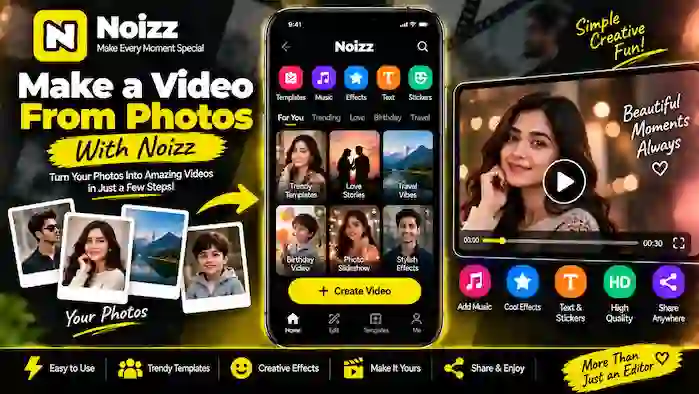
Turning a collection of photos into a video can be a simple way to create a memorable slideshow, travel montage, birthday video, or social media post. With Noizz, you can combine photos with templates, music, effects, text, and other editing elements to create a video without needing advanced editing skills.
If you’re searching for how to make a video from photos with Noizz, this guide explains the basic process from selecting your pictures to previewing and exporting the finished video.
The exact interface and available features can vary depending on your Noizz version and Android device, but the overall photo-to-video workflow is similar.
What Is a Noizz Photo Video?
A Noizz photo video is a video created by combining still images with editing elements such as music, transitions, effects, text, and templates.
Instead of keeping your pictures as separate files, you can arrange them into a sequence and turn them into a short visual story.
For example, you can create:
- Birthday photo videos
- Travel montages
- Family memory videos
- Event slideshows
- Short social media videos
- Photo collages
- Celebration videos
- Before-and-after presentations
The best results usually come from choosing photos that work well together and keeping the video focused on one theme.
What You Need Before Creating a Video
Before opening Noizz, prepare the photos you want to use.
Choose images that are:
- Clear and good quality
- Related to the same topic
- Correctly oriented
- Free from unnecessary duplicates
- Suitable for the video format
You don’t need hundreds of photos. A smaller collection of carefully selected pictures can often produce a cleaner result.
Also make sure your phone has enough storage for the project and final exported video.
Step 1: Open Noizz
Start by opening the Noizz application on your Android device.
Depending on the version you’re using, you may see options for templates, editing tools, effects, or creating a new project.
Look for the option that allows you to start a new video or work with photos.
The wording and placement of buttons can change between versions, so don’t worry if your interface looks slightly different from an online tutorial.
Step 2: Select Your Photos
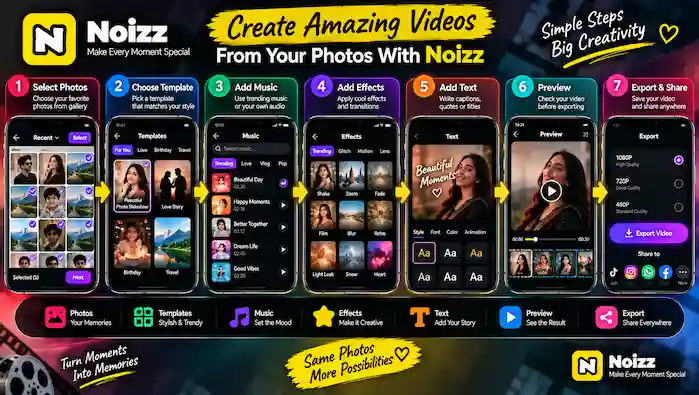
The next step is choosing the pictures you want to include.
Select the photos that tell the story you want your video to communicate.
For example, a travel video could follow this order:
Departure → Destination → Activities → Best Moments → Ending
For a birthday video, you could arrange the pictures around:
Old Memories → Friends & Family → Celebration → Final Message
The order matters because it determines how viewers experience the video.
Step 3: Arrange the Photos
After selecting your images, check their order.
Place the strongest or most important pictures where they have the greatest impact.
You can experiment with different sequences until the video feels natural.
Avoid adding too many nearly identical pictures. Repeated images can make the finished video feel longer without adding much value.
Step 4: Choose a Template
One of the convenient ways to create a Noizz photo video is to use a ready-made template when one is available for your project.
Templates can provide a predefined structure for:
- Photo transitions
- Timing
- Effects
- Text
- Music
- Visual movement
Choose a template that matches your subject.
For example:
- Travel photos → travel-style template
- Birthday pictures → celebration template
- Romantic memories → suitable personal-memory template
- Group photos → social or event template
Template availability can change between Noizz versions.
Step 5: Adjust the Photo Timing
Photo timing determines how long each picture appears.
If an image disappears too quickly, viewers may not have enough time to see it.
If every picture remains on screen for too long, the video can feel slow.
Try to balance the timing with the music and overall pace of the project.
Fast music can work well with quicker transitions, while slower music may suit longer photo displays.
Step 6: Add Music
Music can change the mood of your entire photo video.
If Noizz provides music options for your project, choose a track that matches the theme.
Consider:
- Video length
- Mood
- Beat
- Transition speed
- Subject of the photos
For example, energetic music may work well for a travel montage, while softer music may be more appropriate for a personal memory video.
If you use music from outside the application, make sure you have the appropriate rights to use it, especially if you’re publishing the video publicly.
Step 7: Add Effects
Effects can make a photo video more dynamic.
Depending on the available Noizz tools, you may be able to apply visual effects to the project or individual images.
Use effects carefully.
Too many effects can distract from the actual photos.
A better approach is to choose effects that support the video’s theme rather than adding something to every image simply because it is available.
Step 8: Use Filters
Filters can help give different photos a more consistent appearance.
This can be useful when your pictures were taken:
- On different phones
- In different lighting
- At different times
- In different locations
Try to keep the visual style reasonably consistent.
If every photo has a completely different filter, the final video may look less cohesive.
Step 9: Add Text
Text can provide context or create a personal message.
You could add:
- Names
- Dates
- Locations
- Short captions
- Event titles
- Closing messages
Keep text short and readable.
For example, a travel video could use simple labels such as:
“Our Trip”
“Day 1”
“Beautiful Memories”
“Until Next Time”
Avoid covering important parts of your photos with large text.
Step 10: Add Transitions
Transitions control how one photo changes into another.
A simple transition can make the sequence feel smoother.
Depending on the available Noizz features, you may encounter different transition styles.
Choose transitions that match the pace of your project.
For a professional-looking result, consistency is usually better than using a different transition between every photo.
Step 11: Preview Your Video
Before exporting, preview the complete project.
Pay attention to:
- Photo order
- Timing
- Music synchronization
- Text placement
- Effects
- Transitions
- Overall length
This is one of the most important steps.
A preview lets you find mistakes before creating the final video.
Step 12: Make Final Adjustments
If something doesn’t look right, return to the editing controls and make adjustments.
You might need to:
- Remove a duplicate photo
- Change the order
- Shorten a section
- Replace a photo
- Adjust text
- Change an effect
- Select another music track
- Modify transitions
Small changes can make a significant difference to the final result.
Step 13: Export the Video
Once you’re happy with the project, use the available export option.
The available resolution or quality settings can vary depending on your Noizz version and device.
Choose an appropriate setting based on how you plan to use the video.
For example, a social media video may not require the highest possible resolution if the platform compresses uploaded videos anyway.
Make sure your phone has enough free storage before exporting.
Step 14: Check the Exported Video
After exporting, open the finished video and watch it from beginning to end.
Check whether:
- All photos appear correctly
- The music plays properly
- Text is readable
- Transitions work
- The video has the expected length
- The image quality looks acceptable
If something is wrong, return to the project and make the necessary changes.
How Many Photos Should You Use?
There is no universal number of photos for a Noizz photo video.
The ideal number depends on:
- Video length
- Photo timing
- Music
- Template
- Purpose of the video
For a short social media video, a smaller collection can be enough.
For a longer family or travel montage, you can use more photos.
The goal should be quality and storytelling rather than simply adding as many pictures as possible.
Tips for Better Noizz Photo Videos
Choose a Clear Theme
A focused video is usually easier to watch.
Instead of mixing unrelated pictures, create separate videos for different events or topics.
Use Your Best Photos
Select images that are clear, meaningful, and visually interesting.
Keep the Sequence Logical
Arrange photos so the viewer can understand the story.
Match Music With the Mood
The soundtrack should support the subject rather than compete with it.
Don’t Overuse Effects
Effects should enhance the photos, not hide them.
Keep Text Simple
Short captions are easier to read than long paragraphs.
Preview Before Exporting
Always watch the complete video before saving the final version.
How to Make a Birthday Video With Noizz
Noizz can be useful for creating a birthday photo montage.
A simple structure could be:
- Opening title
- Childhood or older photos
- Family memories
- Friends’ photos
- Recent pictures
- Birthday celebration
- Final birthday message
Choose a suitable template and music, then preview the sequence before exporting.
How to Make a Travel Video From Photos
Travel photos are ideal for a photo-to-video project.
Try arranging your images chronologically.
For example:
Journey → Arrival → Places → Activities → Food → People → Best Moments → Ending
You can add location names or short captions to give viewers more context.
A consistent filter can also help different photos look more unified.
How to Make a Slideshow With Noizz
A slideshow is one of the simplest types of Noizz photo editor/video projects.
Start with a group of related pictures and arrange them in the desired order.
Then choose:
- A suitable template
- Music
- Photo timing
- Transitions
- Optional text
- Optional effects
Preview the slideshow and make adjustments before exporting.
Noizz Photo Editor/Video: What Can You Edit?
Noizz can combine photo editing and video-creation features depending on the version you’re using.
A typical photo-to-video project may involve:
- Selecting photos
- Cropping or adjusting images
- Applying filters
- Adding effects
- Adding music
- Adding text
- Using templates
- Changing transitions
- Previewing the project
- Exporting the final video
The exact tools can change as the application is updated.
Photo Video Looks Blurry After Export
If the finished video doesn’t look as clear as expected, several factors may be involved.
Check:
- Original photo quality
- Export settings
- Available storage
- Project resolution
- Application version
- Video platform compression
Starting with high-quality source images can help.
Remember that some social platforms automatically compress uploaded videos, so the final online version may look different from the original exported file.
Noizz Cannot Import Photos
If Noizz cannot access your pictures, check the application’s media permissions through Android settings.
Also make sure the images are stored locally and can be opened normally from your device.
If the problem continues, restart the application and check whether the issue affects all photos or only particular files.
Noizz Photo Video Export Is Taking Too Long
Video export can take time depending on:
- Video length
- Number of photos
- Effects
- Resolution
- Device performance
- Available storage
Avoid closing the application while the export is processing.
If exporting repeatedly fails, try a smaller project first to determine whether the issue is related to project size or device resources.
Noizz Music Is Not Working
If music isn’t playing correctly, check whether the selected track is available and whether the application has changed its music options in your current version.
You can also preview the project before exporting to determine whether the problem affects the editing preview or only the final file.
Frequently Asked Questions
How do I make a video from photos with Noizz?
Open Noizz, start a photo or video project, select your pictures, arrange them, choose a template if desired, add music and effects, preview the project, and export the finished video.
What is a Noizz photo video?
A Noizz photo video is a video created by combining photos with elements such as music, transitions, effects, text, and templates.
Can I add music to a Noizz photo video?
If the music feature is available in your version, you can select an appropriate track for the project and adjust the video around it.
Can I add text to photos in Noizz?
Depending on the current version, text tools can be used to add titles, captions, dates, or other messages to a project.
Can I use Noizz templates for photos?
Photo-related templates may be available depending on the current application version and available content.
How many photos should I add to a Noizz video?
There is no fixed number. Choose enough photos to tell your story without making the video unnecessarily repetitive or long.
Why is my Noizz photo video blurry?
The result can depend on the original image quality, export settings, project resolution, device performance, and compression applied by a social platform.
Why can’t Noizz access my photos?
Check Noizz’s media permissions in Android settings and make sure the photos are available on your device.
Why is my Noizz video taking a long time to export?
Longer projects, high-resolution media, multiple effects, limited storage, and device performance can affect export time.
Can I create a birthday video with Noizz?
Yes, a collection of birthday photos can be arranged into a slideshow or photo-video project with suitable music, text, transitions, and effects when those features are available.
Can I make a travel video from photos?
Yes. Arrange travel photos in a logical sequence and enhance them with suitable music, transitions, captions, and effects.
Is Noizz suitable for beginners?
A template-based workflow can make photo-to-video creation easier for beginners, although the available controls and interface depend on the application version.
Final Thoughts
Creating a Noizz photo video doesn’t require complicated editing techniques. Start with a small collection of good-quality photos, arrange them in a meaningful order, and then enhance the project with a suitable template, music, transitions, effects, and text.
The most important part is keeping the video balanced. Avoid adding too many photos or effects simply to make the project longer. Instead, focus on telling a clear story and making every image contribute something useful.
Once the project looks right in the preview, export the video and check the finished file before sharing it.
Whether you’re creating a birthday slideshow, travel montage, family memory video, or short social media post, Noizz photo editor/video tools can provide a simple starting point for turning your photos into a shareable video.