
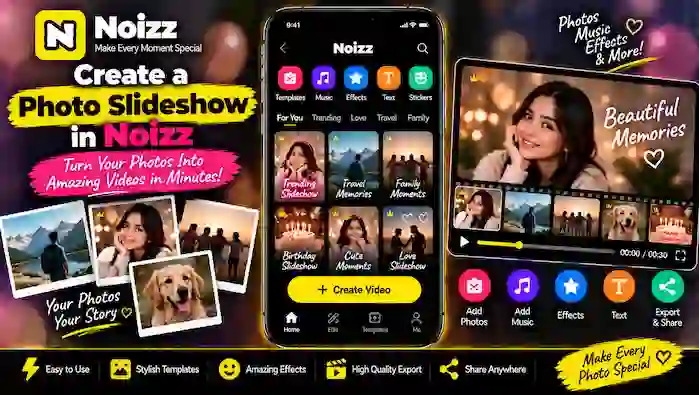
Creating a photo slideshow is an easy way to turn a collection of pictures into a short, engaging video. Instead of sharing several photos separately, you can combine them into one video with music, transitions, effects, and text. With Noizz, you can create a photo slideshow that feels more dynamic and suitable for sharing with friends, family, or on social platforms.
Whether you want to create a travel memory, birthday slideshow, family video, or simple photo montage, the process can be completed in a few straightforward steps. This guide explains how to make a Noizz photo slideshow and how to turn your favorite pictures into a photo video with Noizz.
What Is a Noizz Photo Slideshow?
A Noizz photo slideshow is a video created by combining multiple images into a single sequence. Each photo appears for a certain amount of time, while music, transitions, effects, or text can be added to make the final video more interesting.
A slideshow can be useful when you have several related photos and want to present them as one story. For example, you could combine vacation pictures, birthday memories, family moments, school events, or special occasions into one short video.
The exact templates and editing options available may vary depending on the app version and device.
Why Create a Photo Slideshow With Noizz?
A slideshow is more engaging than simply scrolling through a folder of photos. By combining images with movement, music, and text, you can create a simple visual story.
Some common reasons to make a photo slideshow include:
- Creating a birthday or celebration video
- Combining travel photos into one memory video
- Making a family photo montage
- Creating a school or event slideshow
- Preparing a short social media video
- Turning old pictures into a modern presentation
- Sharing multiple photos in a single video
Noizz can make this process easier by providing editing tools and ready-made styles that can help you arrange your photos quickly.
How to Make a Photo Slideshow in Noizz
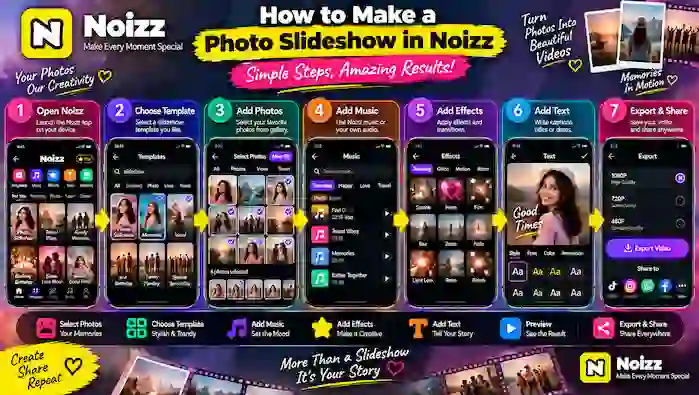
Step 1: Open Noizz
Start by opening Noizz on your Android device. If you are using an older version, some menus or features may look different from the current interface.
Before starting your project, make sure the app has the necessary permission to access the photos and videos you want to use.
Step 2: Select a Slideshow or Video Template
Look through the available templates or video creation options and choose a style that matches your project.
For a simple photo slideshow, look for a template or editing style designed around multiple photos. Depending on what is available in your version of Noizz, you may find different categories for celebrations, memories, music, or other types of videos.
Choose a template that fits the number and style of photos you want to use.
Step 3: Choose Your Photos
Select the pictures you want to include in the slideshow.
Try to choose photos that belong to the same event or story. For example, a travel slideshow will look better when the pictures follow the journey or experience rather than being completely random.
You can use:
- Portrait photos
- Landscape pictures
- Birthday images
- Travel memories
- Family pictures
- Event photos
- Food or lifestyle photos
After selecting your pictures, check their order carefully. The sequence can make a big difference to how the final slideshow feels.
Step 4: Arrange the Photos
Once your photos are selected, review their order. Place the most suitable opening photo first and finish with an image that works well as the ending.
If the editing interface allows you to rearrange the pictures, move them into a logical sequence.
For example, a birthday slideshow could begin with an older picture, continue through preparation and celebration photos, and finish with a group or cake photo.
A simple story structure can make a slideshow feel much more polished.
Step 5: Add Music to Your Photo Video
Music can give your slideshow a completely different mood. Choose audio that matches the type of photos and occasion.
For example:
- Use upbeat music for a celebration.
- Choose calm music for travel memories.
- Use a cheerful track for a family slideshow.
- Select a simple background track for a photo montage.
When available, preview the music before finalizing it. The best soundtrack is one that fits the pace of the pictures without distracting from them.
Step 6: Add Transitions and Effects
Transitions control how one photo changes into the next. Simple transitions can help your slideshow move smoothly from image to image.
You may also be able to add visual effects, depending on the tools available in your Noizz version.
Avoid adding too many effects at once. A clean slideshow with consistent transitions often looks better than one filled with unrelated animations.
Step 7: Add Text to Your Slideshow
Text can help explain the story behind your photos.
You could add:
- A title at the beginning
- Names of people
- Locations
- Dates
- Short captions
- Birthday wishes
- A closing message
Keep your text short and easy to read. If every photo contains large amounts of text, viewers may focus more on reading than enjoying the slideshow.
For a travel video, simple captions such as a location or date can be enough to give the slideshow context.
Step 8: Preview Your Photo Slideshow
Before exporting, watch the entire video from beginning to end.
Check the following:
- Are all photos in the correct order?
- Does the music fit the video?
- Are transitions smooth?
- Is any text difficult to read?
- Does every photo appear correctly?
- Is the slideshow too long?
- Are there any unwanted effects?
This preview step is important because small problems are easier to fix before the final video is saved.
Step 9: Export Your Photo Video
When everything looks correct, use the available export or save option.
Choose an appropriate quality setting if the app provides different export options. Higher-quality videos may require more storage space, so make sure your device has enough free space.
After exporting, open the finished video and watch it once more. This confirms that the final file was created correctly.
Tips for a Better Noizz Photo Slideshow
Choose Similar Photos
A slideshow usually looks more organized when the pictures share a common theme. Mixing unrelated images can make the video feel disconnected.
Keep the Story Simple
You do not need dozens of pictures to make a good slideshow. A smaller selection of meaningful photos can create a more focused video.
Match Music With the Occasion
The soundtrack should support the mood of your photos. Consider whether the video is meant to feel fun, emotional, relaxing, or energetic.
Avoid Too Many Effects
Effects can make a slideshow more attractive, but using too many different styles may make it difficult to follow. Choose a consistent visual style.
Check Photo Quality
Use clear, high-quality images whenever possible. Blurry or heavily compressed pictures may become more noticeable after being included in a video.
Preview Before Sharing
Always watch the finished video before posting or sending it to someone else. This gives you one final opportunity to correct mistakes.
Photo Slideshow Ideas With Noizz
You can create many different types of photo videos with Noizz. Here are a few ideas:
Birthday Slideshow: Combine birthday photos with a suitable template, music, captions, and celebration effects.
Travel Memories: Arrange destination photos in chronological order and add location captions with suitable background music.
Family Video: Create a collection of family moments and use simple transitions to connect the pictures.
Event Slideshow: Combine photos from a wedding, school event, sports event, or gathering into one shareable video.
Memory Montage: Select your favorite pictures from a particular period and turn them into a short visual memory.
Common Problems When Creating a Photo Slideshow
Sometimes a slideshow may not work exactly as expected. If photos are not appearing, check whether Noizz has permission to access your media files.
If the app becomes slow, close unnecessary background applications and make sure your device has enough free storage.
If exporting fails, check available storage and try exporting again. Restarting the app can also help with temporary problems.
When a particular template, music option, or effect is unavailable, it may be related to the current app version, regional availability, or changes to the service. Keeping the legitimate app version updated can help ensure that you have access to supported features.
Frequently Asked Questions
Can I make a photo video with Noizz?
Yes, Noizz can be used to create video-style projects from photos, depending on the features available in your current app version.
How many photos should I use?
There is no fixed number. Use enough photos to tell your story without making the slideshow unnecessarily long. A focused selection of meaningful pictures often works well.
Can I add music to a Noizz photo slideshow?
If music tools are available in your version of Noizz, you can select suitable audio for the slideshow and adjust the video around the soundtrack.
Can I add text to my photo slideshow?
Yes, when text editing is available, you can add titles, captions, dates, names, or short messages to individual parts of your video.
Why is my Noizz slideshow not exporting?
Check your available storage, review the selected media, restart the app, and try exporting again. If the problem continues, checking for an available app update may help.
Final Thoughts
Making a Noizz photo slideshow is a simple way to transform multiple pictures into one shareable video. By selecting the right photos, arranging them in a logical order, adding suitable music, and using clean transitions and text, you can create a slideshow that tells a short visual story.
Whether you are making a birthday memory, travel montage, family video, or event slideshow, take time to preview the project before exporting it. A little organization can make your photo video with Noizz look much more polished and enjoyable to watch.